Audionerdz / Vectra Documentation
Vectra Synth Panel
Instrument Architecture Manual
A premium web manual for the main SYNTH page: oscillator engines, unison, Delta/Flux routing, Prism Warp/Mutate, dual filters, compact envelopes, LFOs, macros and performance controls.
1. Overview
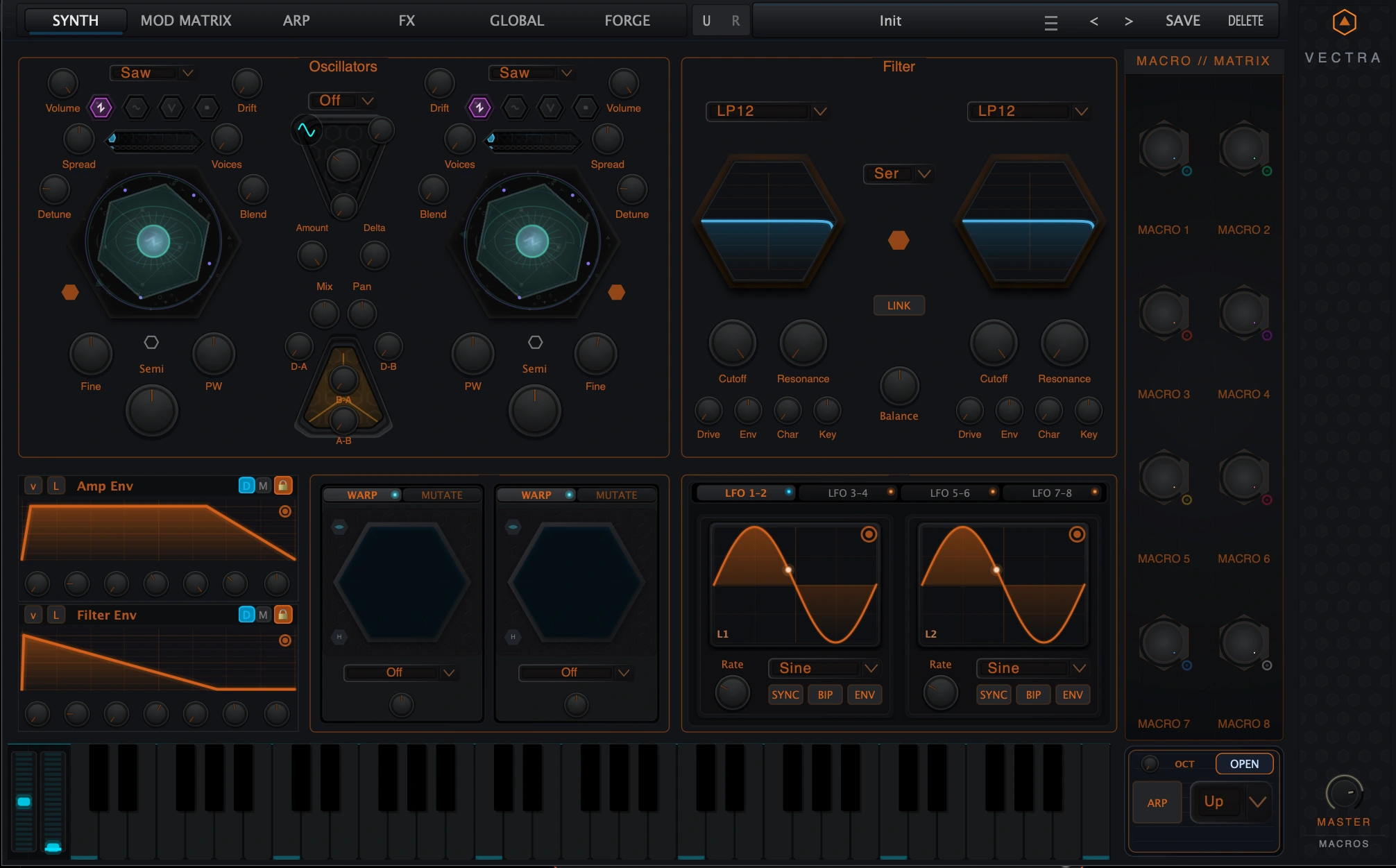
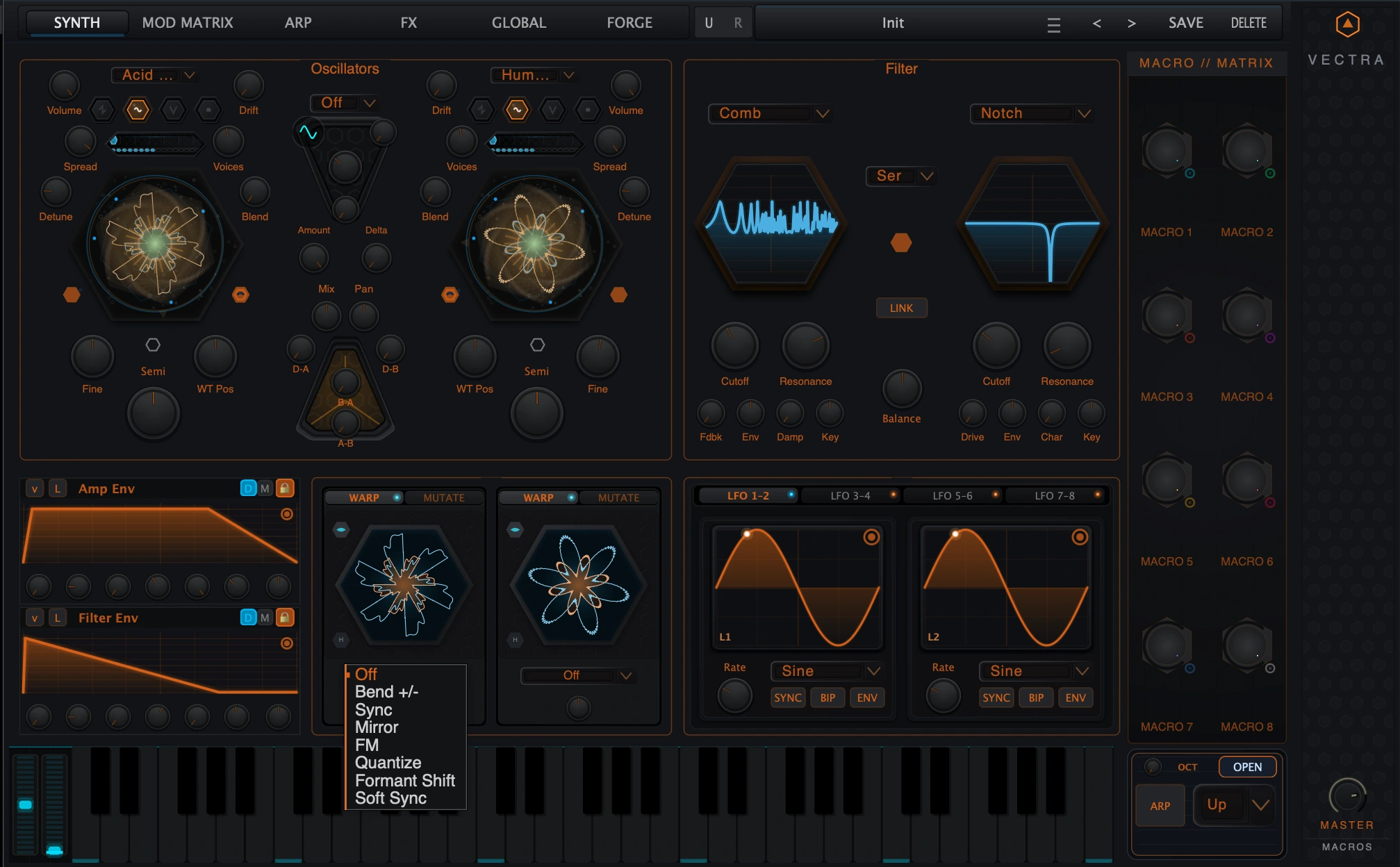
The Synth panel is the central sound-design page of Vectra. It is where the raw sound sources are selected, tuned, animated and shaped before they enter the wider modulation and effects system. The page combines two oscillators, a central routing core, dual filters, compact envelopes, Prism Warp/Mutate panels, eight LFOs, the Macro/Matrix sidebar, a keyboard and quick performance controls.
Use this page when you want to build the core identity of a patch: classic analog shapes, scanned wavetables, generated Forge material, loaded samples, cross-oscillator FM/PM motion, evolving warped sources, dual-filter tone shaping and synchronized modulation.
Oscillator A and B
Generate the primary sources: Virtual Analog, Wavetable, Forge-mode material or Sample playback.
Delta / Flux routing
Blends and cross-modulates the oscillators and Delta source for sync, FM/PM-style interaction and tone complexity.
Prism Warp / Mutate
Applies per-oscillator source transformation and generated-source mutation workflows.
Dual Filter
Runs two filters in Serial or Parallel with cutoff, resonance, drive, envelope amount, character and key tracking.
Compact Envelopes
Shows fast DAHDSR/MSEG access for Amp, Filter, Mod Env 1 and Mod Env 2.
LFO Hub
Presents eight LFOs in pairs for repeating, synced, bipolar or envelope-style motion.
Macro/Matrix and performance strip
Keeps macros, keyboard, arpeggiator and octave controls available while designing the patch.
2. Quick Start
Build a first subtractive patch
- Open the SYNTH tab and start from an initialized patch.
- Set Oscillator A to Virtual Analog and choose Saw.
- Set Oscillator B to Saw or Square, then tune Fine slightly away from Oscillator A for width.
- Set Voices to 2-4 and add a small amount of Detune and Spread.
- Use Mix to balance the two oscillators.
- Choose LP24 Ladder or LP12 in Filter 1 and lower Cutoff.
- Use Amp Env for amplitude shape and Filter Env for tone movement.
- Add one LFO or Macro movement only after the basic tone is working.
Choose an oscillator engine quickly
Classic bass, lead or pad
Engine: Virtual Analog
First control to adjust: Wave, PW, unison and filters.
Modern scanned timbre
Engine: Wavetable
First control to adjust: WT Pos, unison and filter movement.
Generated Audionerdz material
Engine: Forge mode
First control to adjust: Forge recipe selection and WT Pos.
Audio-derived texture or transient
Engine: Sample
First control to adjust: Drop/load sample, Start and Sample Bay editing.
Fast workflow order
- Pick the engine before fine-tuning the controls. VA, Wavetable, Forge and Sample expose different front-panel controls.
- Set pitch and level next: Semi, Fine, Volume and Mix define the basic relationship between the oscillators.
- Add unison after the source is chosen. Excessive unison can hide filter and envelope decisions.
- Use filters to frame the sound before adding heavy Delta/Flux or Prism movement.
- Treat FM/Flux depths and Mutate controls as high-impact sound-design controls. Move them slowly and watch output level.
3. Synth Page Tour
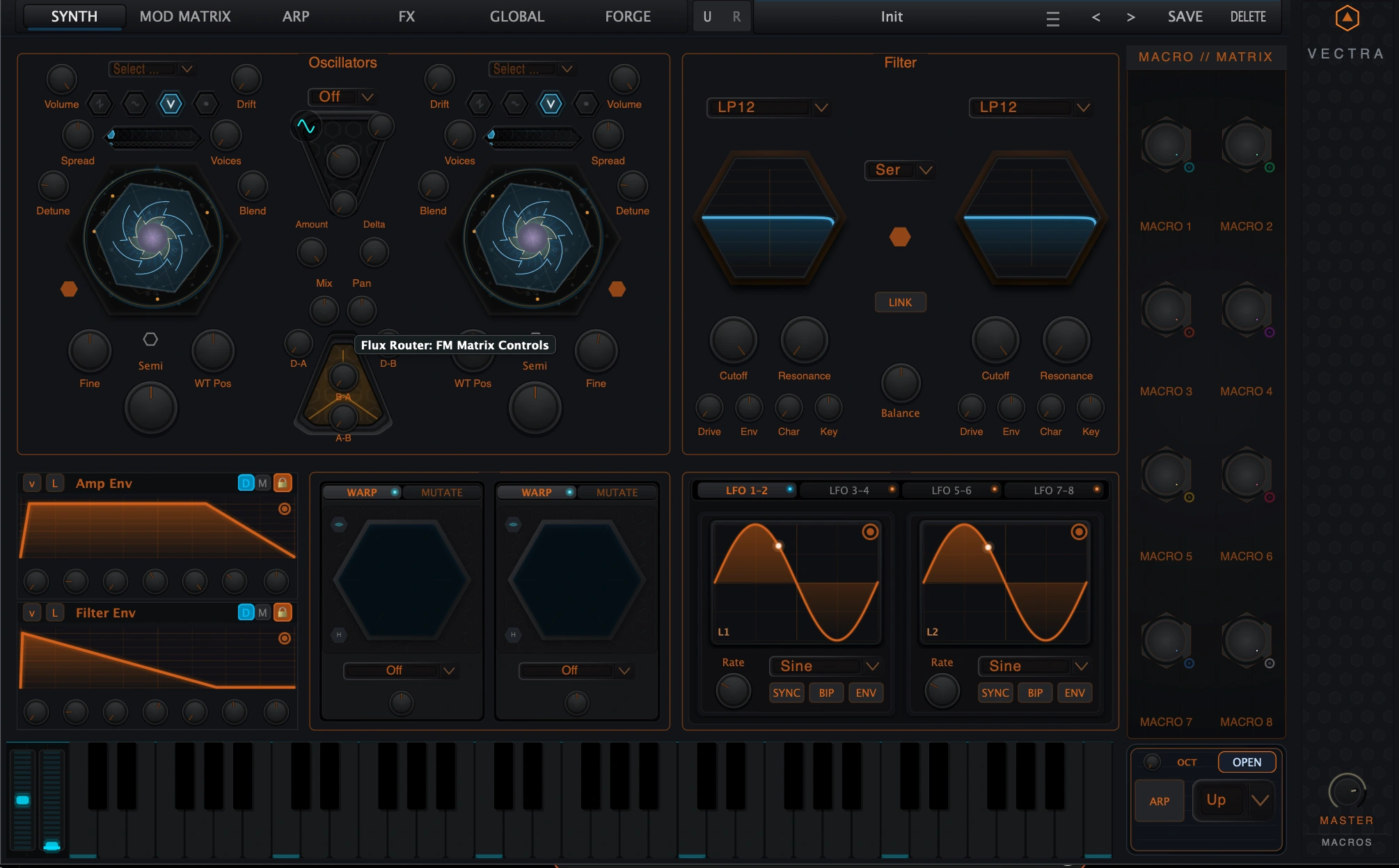
Top navigation
Switch between Synth, Mod Matrix, Arp, FX, Global and Forge pages.
Oscillators
Select engine, choose source material, set pitch, unison and source-specific controls.
Central router
Set sync and FM/PM-style relationships between the two oscillators and Delta source.
Filter section
Choose filter models, routing, link state and tone-shaping controls.
Envelope strip
Use compact Amp/Filter/Mod envelope controls or open the full editor.
Prism panels
Warp or mutate each oscillator source.
LFO hub
Create repeating modulation and route it through the Mod Matrix.
Macro/Matrix sidebar
Use eight macros as performance controls and modulation sources.
Keyboard and quick controls
Audition notes and access ARP/OCT controls without leaving Synth.
Compact versus deep editing
The Synth page gives immediate access to the most important controls. Some subsystems are intentionally compact here. Envelopes, Forge creation, Mod Matrix assignment, Sample editing and ARP sequencing each have deeper dedicated views or manuals. The Synth panel remains the performance and patch-building center.
Back to top4. Oscillator Engines
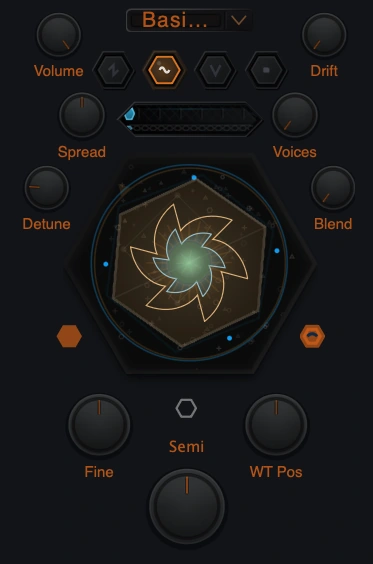
Each oscillator can act as a classic oscillator, a wavetable player, a Forge-material player or a sample source. The UI presents these as four source choices. In the DSP architecture, Forge mode uses the wavetable engine path with Forge mode enabled; it is not a separate low-level engine type.
Virtual Analog
Classic oscillator source with Saw, Square, Sine and Triangle.
Wavetable
Scannable wavetable source.
Forge
Performance-side playback of Vectra Forge material through the wavetable-family path.
Sample
Audio sample playback as an oscillator source.
Virtual Analog
Virtual Analog mode is the most direct starting point. Choose Saw, Square, Sine or Triangle, then use pitch, level, pulse width, unison and the filters to shape the sound. In VA mode the dynamic lower-right oscillator control is PW, because pulse width is the source-specific parameter.
Wavetable
Wavetable mode plays a scannable table. The source selector chooses the table and WT Pos moves through it. WT Pos is one of the most important modulation targets for moving digital tones: slow movement creates evolving pads, while rhythmic movement can make basses and leads speak.
Forge mode
Forge mode loads material generated or saved from Vectra Forge. Use it when the oscillator should play a generated recipe or library design rather than a standard wavetable. Forge creation itself happens in the Forge page; the Synth panel is where that material becomes part of a playable patch.
Sample
Sample mode lets an oscillator play loaded audio. The front-panel hex accepts sample drops and the visible Start control sets the note-on start point. Detailed trimming, loop editing and sample management belong in the Sample Bay/editor.
Back to top5. Oscillator Controls
The two oscillators share the same control layout. The source engine changes a few dynamic controls, but pitch, level and unison behavior remain consistent.
| Control | Range / options | Meaning |
|---|---|---|
| Volume | 0.0-1.0 | Oscillator level before the rest of the synth path. |
| Semi | -48 to +48 semitones | Coarse oscillator tuning. |
| Fine | -100 to +100 cents | Fine tuning. OSC 2 defaults slightly detuned for width. |
| Voices | 1-16, access-limited | Number of unison voices requested for the oscillator. |
| Detune | 0.0-1.0 | Unison pitch spread. |
| Spread | 0.0-1.0 | Stereo distribution of unison voices. |
| Blend | 0.0-1.0 | Balances center and spread voice contribution. |
| Drift | 0.0-1.0 | Adds analog-style instability. |
| PW | 0.05-0.95 | Pulse width in VA mode. |
| WT Pos | 0.0-1.0 | Position inside a wavetable or Forge-generated table. |
| Start | 0.0-1.0 | Sample start point, latched at note-on in Sample mode. |
Pitch and level
Semi and Fine define the harmonic relationship between the two oscillators. Small Fine offsets produce width. Semitone intervals create musical layers: -12 for sub support, +7 for fifths, +12 for octave reinforcement. Use Volume and the central Mix control together: Volume sets each oscillator level, while Mix sets the overall A/B balance.
Dynamic source controls
PW, WT Pos and Start are intentionally source-specific. Modulating PW gives VA movement; modulating WT Pos scans through a table; moving Start changes where new sample notes begin. Existing sample notes keep their note-on start point, so trigger a new note to hear a Start change reliably.
Back to top6. Unison
Unison creates multiple detuned voices from one oscillator. It is a core part of wide leads, thick basses and animated wavetable/Forge sounds. Vectra supports advanced unison behavior, but maximum voices and unison modes can depend on edition or module access.
| Access state | Maximum voices | Modes |
|---|---|---|
| Baseline / no advanced unison access | 2 | Classic only. |
| Standard or Deluxe advanced access | 8 | Classic, Hyper, Diffused and Binaural. |
| Deluxe access | 16 | All public unison modes. |
Classic
Traditional detuned voice spread.
Hyper
Super-saw style density for wide, bright stacks.
Diffused
Gaussian-style voice distribution for smoother width.
Binaural
Wide stereo-oriented unison.
Chaos
Randomized voice behavior for unstable textures.
Shadow
Octave-weighted layering.
Fifth
Power/fifth relationship for strong harmonic stacks.
7. Wavetable, Forge and Sample Workflows
Wavetable workflow
- Choose Wavetable mode on an oscillator.
- Select a table from the source dropdown.
- Set WT Pos to the most useful frame.
- Add slow WT Pos modulation for pads or tight rhythmic modulation for bass movement.
- Shape brightness and weight with the filter section.
Forge oscillator workflow
- Create or save a Forge design from the Forge page.
- Return to the Synth page.
- Select Forge mode on an oscillator.
- Load the generated recipe from the oscillator source selector.
- Use WT Pos, unison, filters, Prism and modulation to perform it inside the Synth page.
Sample workflow
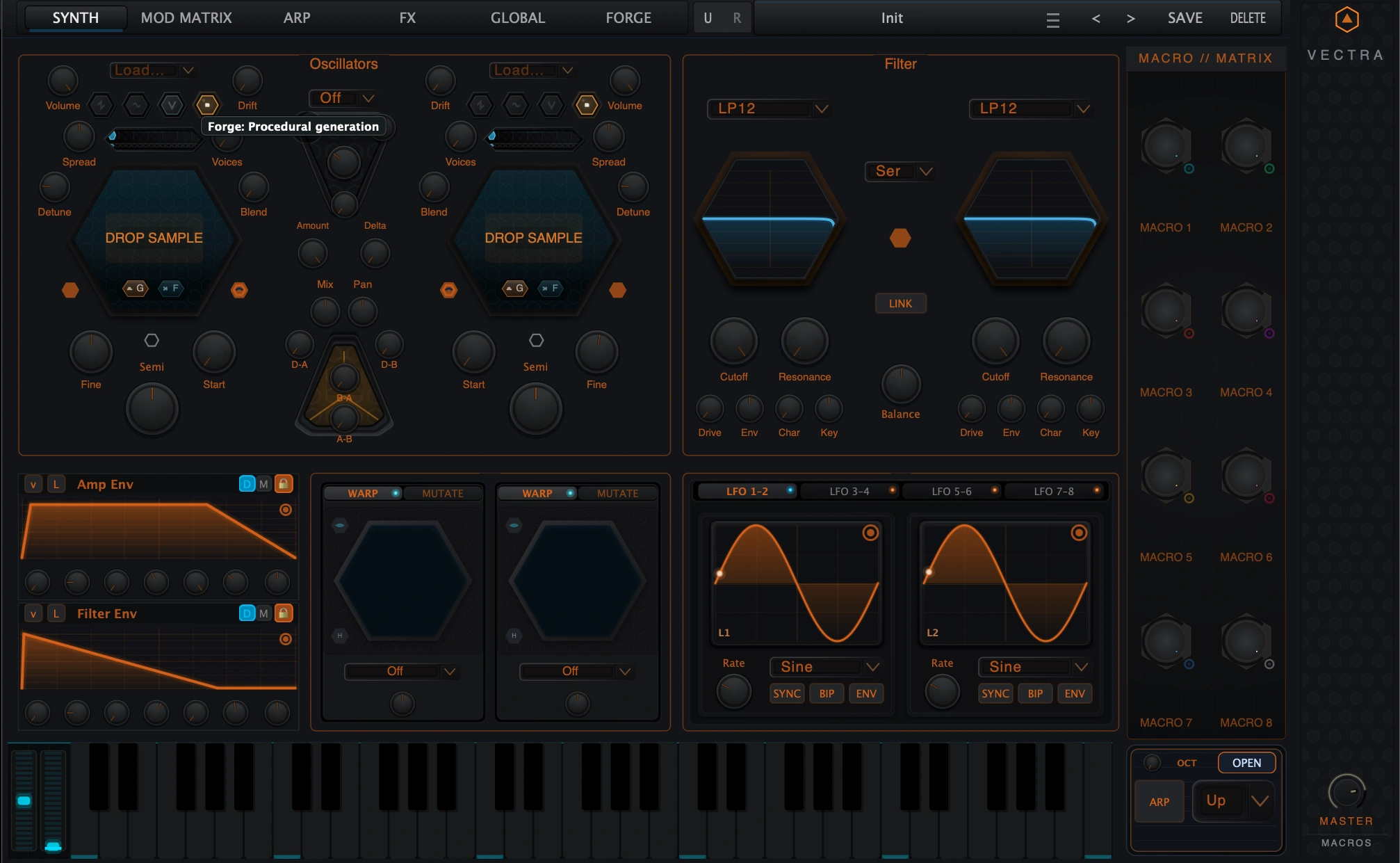
- Select Sample mode or drop a supported audio file onto the oscillator hex.
- Use Start to choose where newly triggered notes begin.
- Choose One-Shot, Gate or Loop behavior in the sample workflow.
- Use the Sample Bay/editor for trimming, looping and deeper sample preparation.
- Filter and modulate the sample oscillator like the other source engines.
Supported sample load formats
| Supported sample load formats | Notes |
|---|---|
| WAV | Supported in the Synth sample path. |
| AIFF / AIF | Supported in the Synth sample path. |
| FLAC | Supported in the Synth sample path. |
8. Delta Core and Flux Router
The center of the oscillator section controls relationships between Oscillator A, Oscillator B and the Delta source. This area is where clean oscillator layering can become sync, FM/PM-style tone shaping and more aggressive cross-source motion.
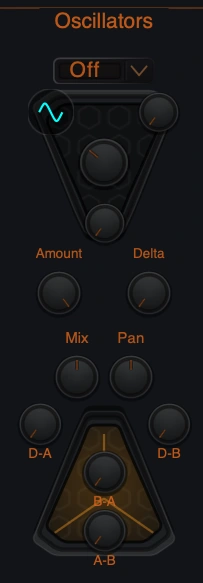
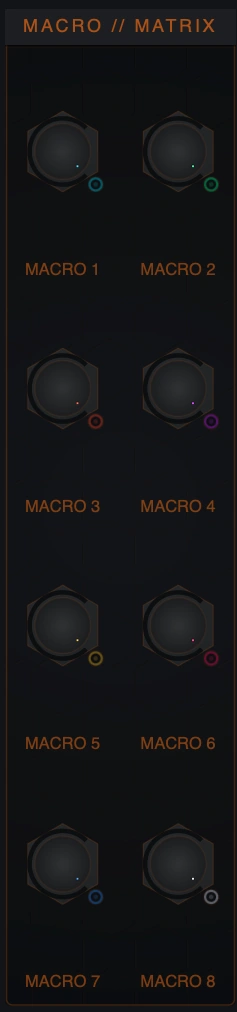
Use this central area to move from simple oscillator layering into sync, Delta contribution and FM/PM-style cross-depths. The Macro/Matrix strip remains visible beside the Synth panel for performance routing.
| Control | Range / options | Meaning |
|---|---|---|
| Sync Mode | Off, Legacy, Hard, Soft, Windowed | Chooses the oscillator sync behavior. |
| Amount | 0.0-1.0 | Controls sync intensity. |
| Delta | 0.0-1.0 | Sets Delta Core contribution. |
| Mix | 0.0-1.0 | Balances oscillator A and B. |
| Pan | -1.0 to +1.0 | Overall stereo position. |
| D-A | 0.0-4.0 | Delta-to-A FM/PM-style depth. |
| D-B | 0.0-4.0 | Delta-to-B FM/PM-style depth. |
| B-A | 0.0-4.0 | B-to-A cross depth. |
| A-B | 0.0-4.0 | A-to-B cross depth. |
9. Prism Warp, Mutate and DNA Flux
Each oscillator has a Prism panel below it. This area is where the source can be warped, mutated or connected to DNA Flux-style movement. It is separate from oscillator engine selection: choose the engine first, then use Prism to transform the chosen source.
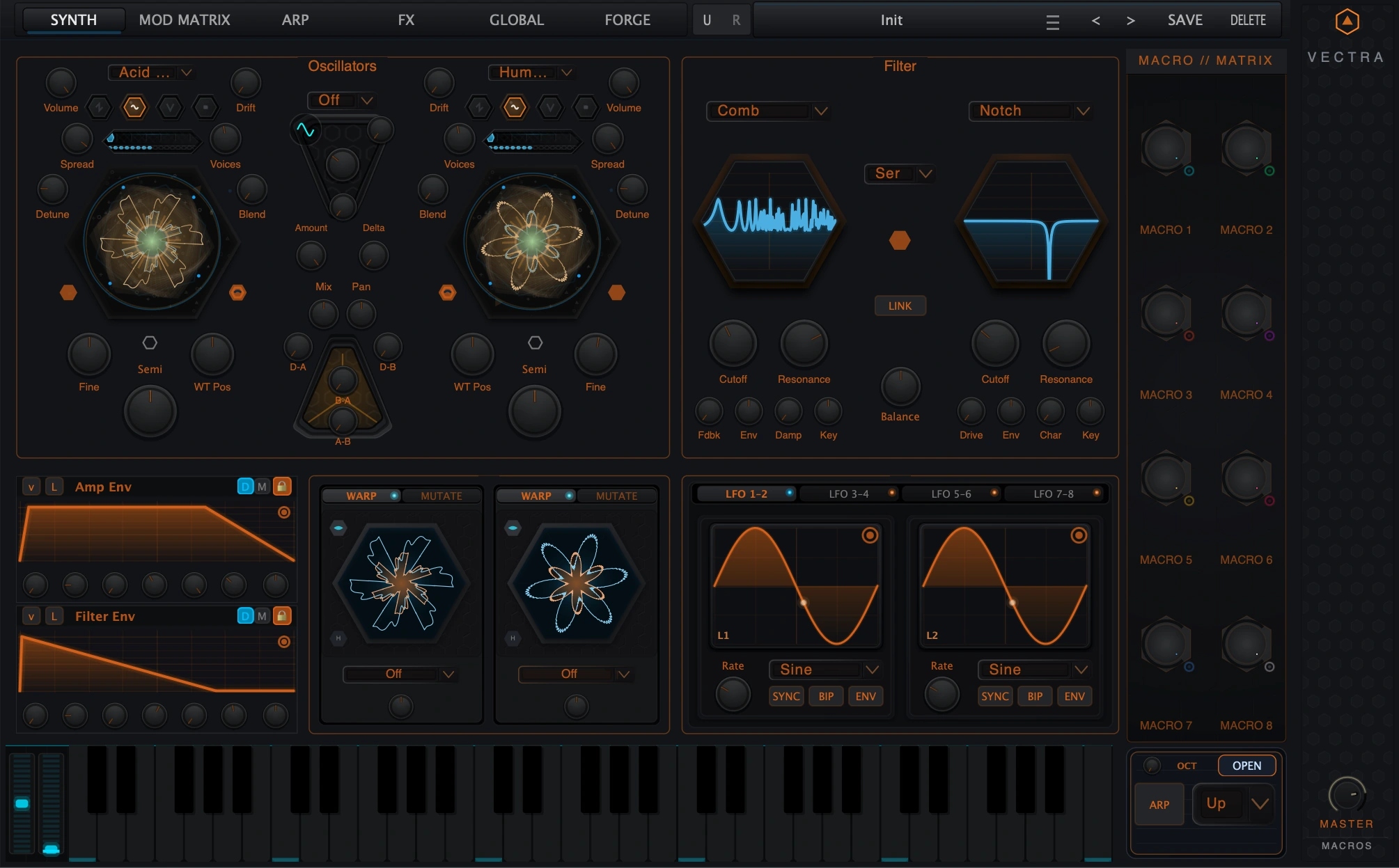
Warp
Continuous source transformation. Warp Amount ranges from -1.0 to +1.0.
Mutate
Generative or spectral mutation behavior. Mutate Amount ranges from 0.0 to 1.0.
DNA Flux
Live mutation-related workflow for evolving or reinterpreting oscillator material.
Reforge / auto-mutate behavior
Creates new material or rebakes mutation state where supported.
Warp modes
| Mode | Use |
|---|---|
| Off | No Warp transformation. |
| Bend +/- | Bend the source shape in opposite directions. |
| Sync | Sync-style transformation. |
| Mirror | Mirror-style waveform transformation. |
| FM | Frequency-modulation-style warp. |
| Quantize | Stepped or quantized source character. |
| Formant Shift | Vowel/body movement. |
| Soft Sync | Softer sync-style behavior. |
Mutate modes
| Mode | Use |
|---|---|
| Spectral FM | Spectral frequency-modulation mutation. |
| HCM | Harmonic/complexity mutation family. |
| Wavefold | Folded or saturated source reshaping. |
| Spectral Resonator | Resonant spectral mutation. |
| Genesis Recomb | Recombined/generated material movement. |
| Chaos Core | Unstable or chaotic timbral behavior. |
| Spectral Lattice | Structured lattice/resonator movement. |
| Harmonic Manifold | Dense harmonic-field style mutation. |
10. Dual Filter Section
The Synth panel includes two filters with shared routing. Use the filters to frame oscillator brightness, create movement, shape resonance, add drive and build serial or parallel tone structures.
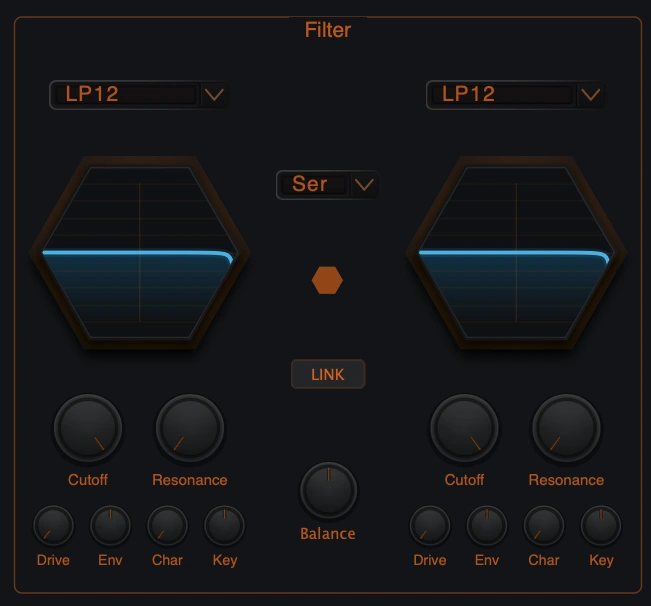
Filter controls
| Control | Meaning |
|---|---|
| Type | Chooses the filter model for Filter 1 or Filter 2. |
| Cutoff | Main frequency control, 20 Hz-20 kHz. |
| Resonance | Filter resonance. |
| Drive | Input/filter drive. In Comb/Resonator contexts this can appear as feedback-oriented behavior. |
| Env | Filter Envelope amount. |
| Char | Filter character mode. In Phase Filter this appears as Stages. |
| Key | Keyboard tracking. |
| Routing | Serial or Parallel. |
| Link | Links filter controls for paired movement. |
| Balance | Balances the dual-filter contribution. |
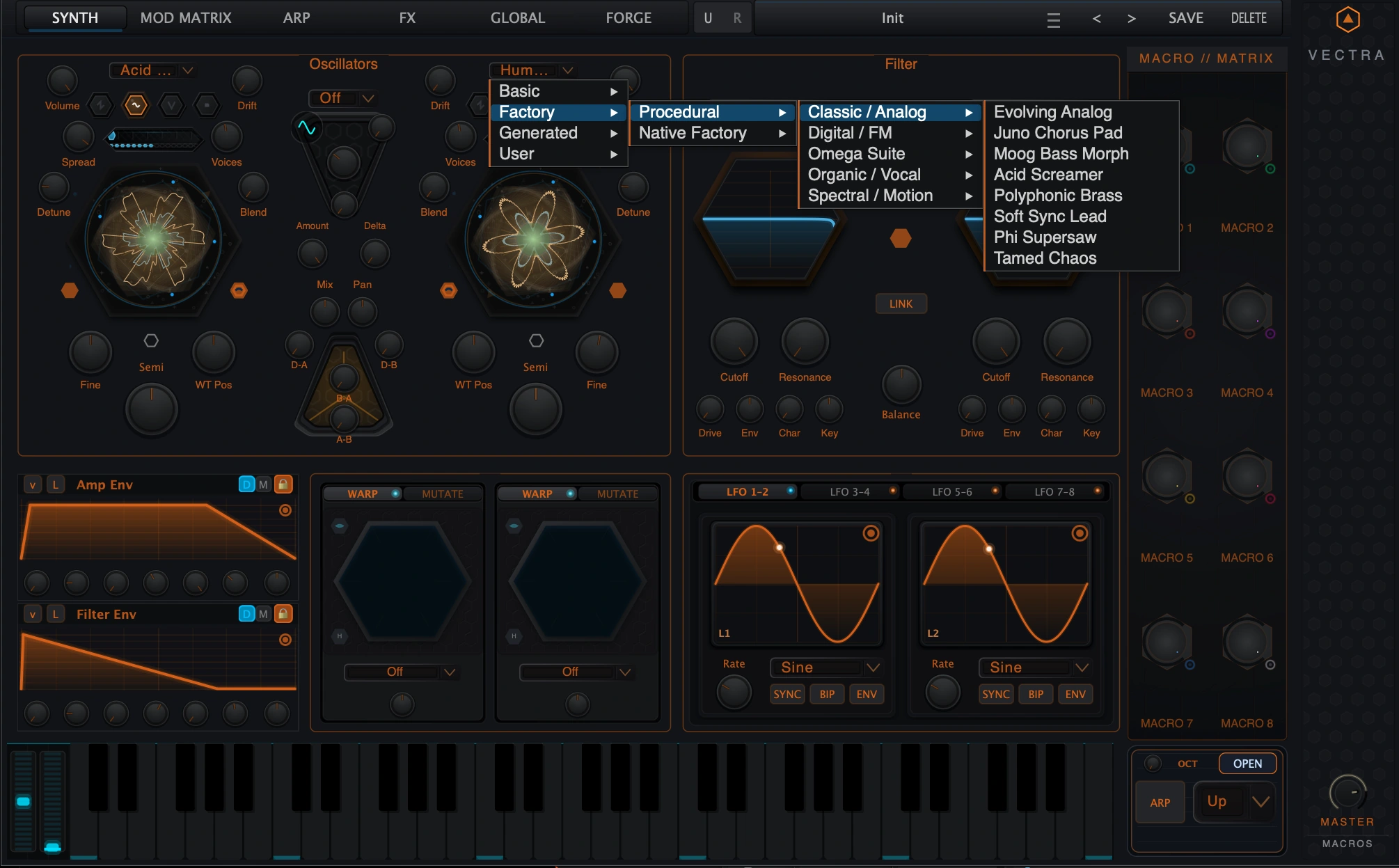
Filter models
| Model | Notes |
|---|---|
| LP24 Ladder | Base low-pass ladder model. |
| LP12 | Base 12 dB low-pass. |
| HP12 | Base high-pass. |
| BP12 | Base band-pass. |
| Notch | Advanced model. |
| Peak | Advanced model. |
| Formant | Advanced model for vowel-like tone. |
| Comb / Resonator | Advanced resonant/comb behavior; control labels may change. |
| Morph | Advanced morphing filter behavior. |
| Vowel | Advanced vowel filter behavior. |
| Phase Filter | Advanced phase/stage behavior; Char can become Stages. |
| SEM | Advanced SEM-style filter. |
| Varislope LPF | Advanced variable-slope low-pass. |
11. Compact Envelopes
The Synth page contains compact envelope panels for fast patching. These panels show the current shape and the main controls without requiring the full envelope editor. Double-click or use the envelope navigation controls to open the dedicated Envelopes view for detailed DAHDSR and MSEG work.
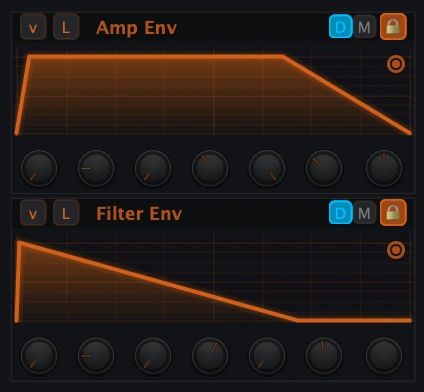
| Compact lane | Primary role |
|---|---|
| Amp Env | Main amplitude contour. |
| Filter Env | Filter cutoff/tonal contour. |
| Mod Env 1 | General-purpose modulation envelope, paired with Amp Env in the expanded envelope system. |
| Mod Env 2 | General-purpose modulation envelope, paired with Filter Env in the expanded envelope system. |
12. LFO Hub
Vectra provides eight LFOs from the Synth page. They are arranged in four pair tabs: LFO 1-2, LFO 3-4, LFO 5-6 and LFO 7-8. Each LFO has a visual preview, a Rate control, shape selector and mode buttons for synchronized, bipolar and envelope-style behavior.
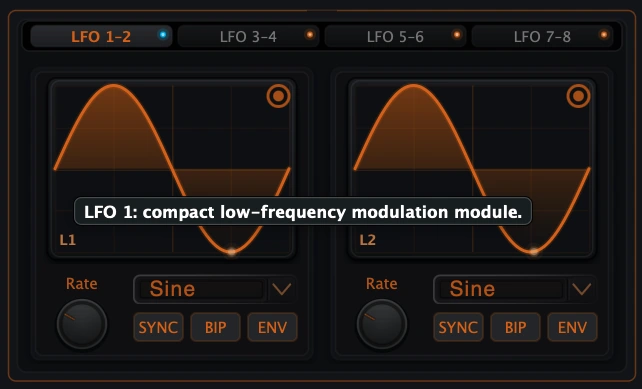
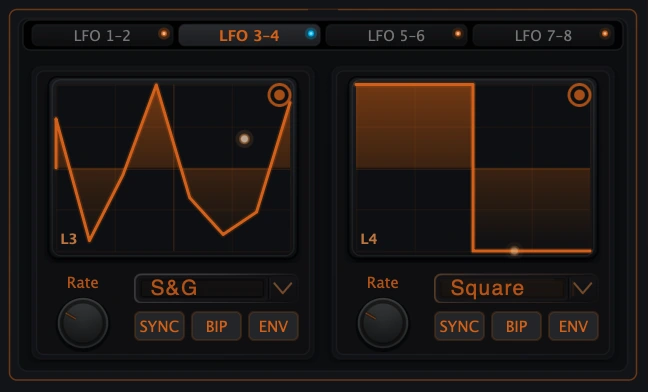
Each LFO panel exposes a waveform preview plus shape and mode controls for free-running, synced, bipolar or envelope-style modulation behavior.
| Control | Meaning |
|---|---|
| Rate | Free-running rate, 0.01-30.0 Hz when Sync is off. |
| Shape | Sine, Saw, Square, Triangle, Sample & Hold or Sample & Glide. |
| SYNC | Uses musical rate divisions instead of the free Rate knob. |
| BIP | Bipolar LFO output. |
| ENV | Envelope-style one-shot behavior. |
| Source orb | Drag/use as a modulation source in Vectra workflows. |
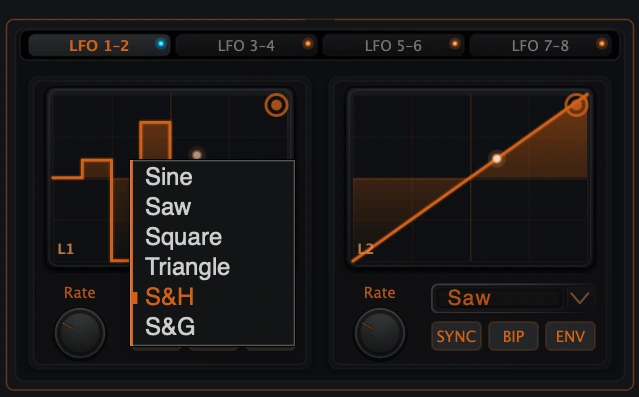
Synced rate values
- 4 Bars
- 2 Bars
- 1 Bar
- 1/2
- 1/2D
- 1/2T
- 1/4
- 1/4D
- 1/4T
- 1/8
- 1/8D
- 1/8T
- 1/16
- 1/16D
- 1/16T
- 1/32
13. Macro/Matrix, Keyboard and Performance Controls
The right side of the Synth page keeps Vectra performance controls in view. The Macro/Matrix strip contains eight macro knobs, and the lower-right quick panel gives immediate access to octave/keyboard and arpeggiator controls. These are global performance utilities rather than oscillator-only parameters.
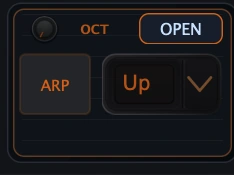
| Control | Use |
|---|---|
| Macro 1-8 | Performance macro controls and modulation sources. |
| OCT | Octave quick control. |
| OPEN | Open the deeper related view/editor. |
| ARP | Enable or access arpeggiator workflow. |
| Direction selector | Quick transpose/direction-style control shown in the lower-right panel. |
| Keyboard | Audition and perform the current patch. |
14. Modulation Integration
The Synth panel is designed for modulation. Many visible knobs are modulation destinations, while envelopes, LFOs and macros are modulation sources. The safest rule is simple: continuous sound-shaping controls are likely modulation targets; architectural selectors choose a mode and usually are not.
| Can be modulated | Examples |
|---|---|
| Oscillator tone controls | Fine pitch, level, pulse width, WT Pos, unison detune/spread/blend/drift. |
| Source transformation | Warp Amount, Mutate/DNA Flux amount where exposed. |
| Filter controls | Cutoff, resonance, drive, envelope amount, balance and related parameters. |
| Mixer/routing controls | Mix, Pan, Delta level, Sync Amount and FM/Flux depths. |
| LFO and envelope timing | LFO rates, MSEG time/release and DAHDSR stages where exposed. |
| Sample parameters | Sample Start and selected sample parameters where exposed. |
| Not direct modulation targets | Reason |
|---|---|
| Engine selector | Chooses the oscillator architecture. |
| Forge mode button | Selects Forge playback state rather than a continuous destination. |
| Source dropdowns | Choose a wavetable, Forge recipe or sample file. |
| Filter type / routing selectors | Choose filter architecture. |
| Visualizer modes | Display choices only. |
| Context menu commands | Editing commands, not signal parameters. |
15. Practical Recipes
Classic saw bass
- Oscillator AVA Saw, Semi 0, Fine 0, Volume full.
- Oscillator BVA Saw or Square, Fine +3 to +7 cents, lower Volume.
- Unison2 voices, low Detune, moderate Spread.
- FilterLP24 or LP12, lower Cutoff, small Resonance.
- EnvelopeFast Amp Attack, short Release, Filter Env into Cutoff.
Wide supersaw lead
- EnginesVA Saw on both oscillators.
- UnisonUse Hyper or Classic where available. Increase Voices carefully.
- PitchDetune with Fine and keep Semi aligned.
- FilterLP12 with moderate cutoff; add drive if needed.
- MotionAdd LFO or macro to cutoff and small WT/warp movement if using a wavetable layer.
Wavetable growl bass
- EngineWavetable on Oscillator A.
- WT PosFind an aggressive frame, then modulate WT Pos.
- FluxAdd very small A-B or B-A if using Oscillator B.
- FilterSerial filters for weight and control.
- PrismTry low Warp Amount before using heavy Mutate.
Forge hybrid pad
- EngineForge mode on one or both oscillators.
- SourceLoad a Forge recipe from the user library.
- UnisonSpread moderately and keep Detune musical.
- FilterParallel routing for width.
- MotionSlow LFO to WT Pos, filter cutoff or Warp Amount.
Sample-start pluck
- EngineSample on Oscillator A.
- SourceDrop or load a short sample.
- StartMove Start until the attack feels right; retrigger notes after changes.
- Amp EnvShort Release and controlled Decay.
- FilterUse HP12 or BP12 to remove excess lows if needed.
Metallic Flux stab
- SourcesSimple VA or sine/triangle-like sources.
- RouterRaise A-B or B-A slightly.
- DeltaUse low Delta with D-A or D-B for extra sidebands.
- FilterUse resonance and drive carefully.
- SafetyLower oscillator volume before pushing FM depths.
16. Troubleshooting
WT Pos disappeared
Likely reason: The oscillator is in VA or Sample mode.
What to do: Use Wavetable/Forge for WT Pos; VA shows PW and Sample shows Start.
PW disappeared
Likely reason: The oscillator is not in VA mode.
What to do: Switch to Virtual Analog.
Start changes do not affect a held note
Likely reason: Sample Start is latched at note-on.
What to do: Trigger a new note.
Forge behaves like Wavetable in some places
Likely reason: Forge is a wavetable-family playback mode.
What to do: Use the Forge page for creation and the Synth page for performance.
Unison voice count drops
Likely reason: The selected count exceeds current access.
What to do: Use an available voice count or unlock the related module/edition.
Some filter models are locked
Likely reason: Advanced filters are capability-gated.
What to do: Use base filters or unlock the required filter module/edition.
Visualizer change did not change sound
Likely reason: Visualizer mode is display-only.
What to do: Change engine/source/filter/Prism controls for sound changes.
LFO Rate knob does not control speed
Likely reason: SYNC is active.
What to do: Use the sync-rate selector or disable SYNC.
Patch becomes harsh or loud with Flux
Likely reason: FM/PM-style depths are high-impact.
What to do: Lower A-B/B-A/D-A/D-B, reduce oscillator levels and filter brightness.
Sample file is missing
Likely reason: The preset references a file path that is not available.
What to do: Use Locate Missing Sample or reload the source.
17. Technical Appendix
17.1 Engine identity
| Public mode | DSP identity |
|---|---|
| Virtual Analog | EngineType::VirtualAnalog |
| Wavetable | EngineType::Wavetable |
| Forge | EngineType::Wavetable plus Forge mode enabled |
| Sample | EngineType::Sample |
17.2 Main parameter ranges
| Parameter | Range / values |
|---|---|
| Oscillator Wave | Saw, Square, Sine, Triangle |
| Semi | -48 to +48 semitones |
| Fine | -100 to +100 cents |
| Volume | 0.0-1.0 |
| PW | 0.05-0.95 |
| WT Position | 0.0-1.0 |
| Sample Start / End / Loop points | 0.0-1.0 |
| Voices | 1-16, access-limited |
| Unison Detune / Spread / Blend / Drift | 0.0-1.0 |
| Warp Amount | -1.0 to +1.0 |
| Mutate Amount | 0.0-1.0 |
| Filter Cutoff | 20 Hz-20 kHz |
| Filter Resonance / Drive / Balance | 0.0-1.0 |
| Filter Env Amount | -10000 to +10000 |
| Keytrack | 0.0-2.0 |
| LFO Rate | 0.01-30.0 Hz |
| FM/Flux depths | 0.0-4.0 |
| Sync Amount / Delta Level | 0.0-1.0 |
| Mix | 0.0-1.0 |
| Pan | -1.0 to +1.0 |
17.3 Sample behavior summary
| Item | Public behavior |
|---|---|
| Load formats | WAV, AIFF/AIF and FLAC. |
| Playback modes | One-Shot, Gate and Loop. |
| Front-panel dynamic control | Start. |
| Start behavior | Latched at note-on; retrigger to hear changes on a new note. |
| Deeper editing | Sample Bay/editor. |
17.4 Filter access summary
LP24 Ladder, LP12, HP12 and BP12 are the base filter choices. Notch, Peak, Formant, Comb/Resonator, Morph, Vowel, Phase Filter, SEM and Varislope LPF are advanced filter choices and may be access-gated. Comb/Resonator and Phase Filter can change visible control labels to better match the active model.
17.5 Cross-manual references
| Manual | Use it for |
|---|---|
| Vectra Forge manual | Creating Forge designs and saving them to the user library. |
| Vectra Envelopes manual | Full DAHDSR and MSEG editing. |
| Mod Matrix manual | Routing macros, LFOs and envelopes to destinations. |
| Arp manual | Detailed arpeggiator programming. |
| FX manuals | Effects modules after the Synth source path. |
17.6 Final operating summary
Build from the source outward: select VA, Wavetable, Forge or Sample; tune and balance the oscillators; add unison only as needed; use Delta/Flux and Prism for complexity; shape the result with the dual filters; animate with envelopes, LFOs and macros; then move to Mod Matrix, Arp or FX when the core voice is ready.
Back to top