A professional operating manual for VECTRA's envelope system: classic DAHDSR shaping, advanced MSEG drawing, tempo-synced motion, step-sequencer workflows, Mod Matrix integration and practical modulation design.
Public release 1.0May 2026 behavior referenceDAHDSR + MSEG modulation
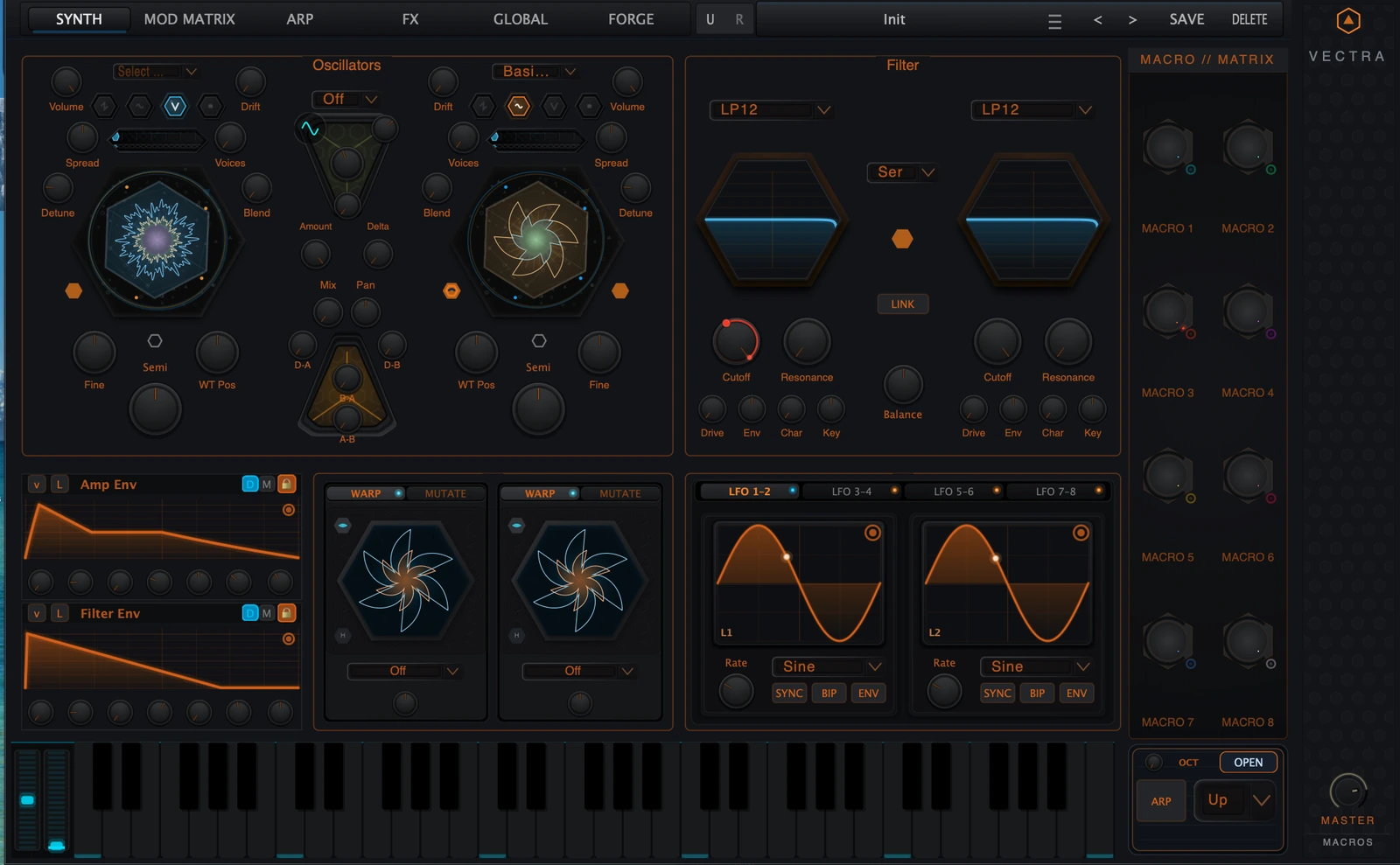
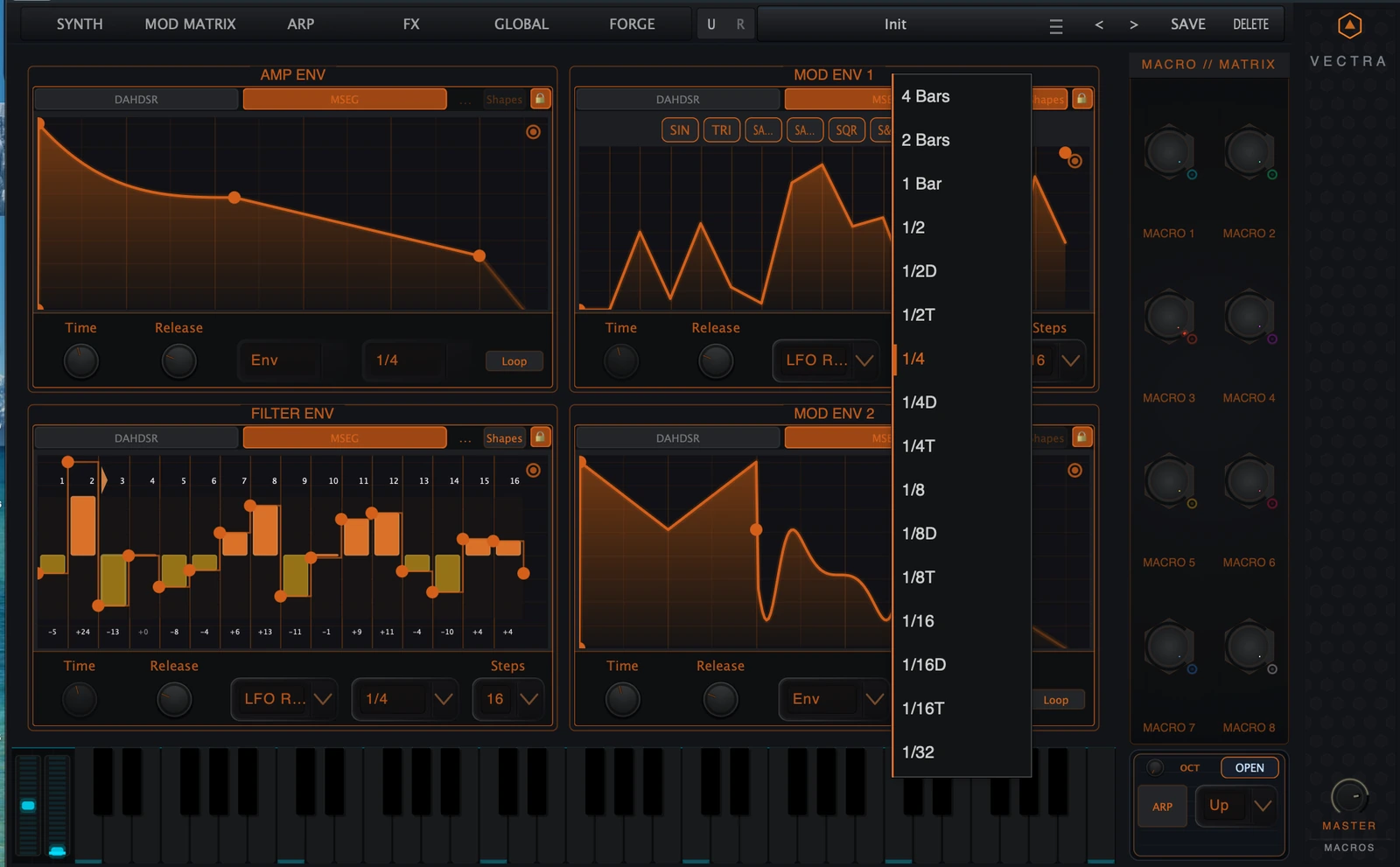
Figure 1. Vectra Synth page with the compact envelope panels in context.
1. Envelopes at a glance
Vectra uses envelopes as performance-grade modulation sources. They can behave like familiar synthesizer envelopes, draw complex multi-segment curves, or operate as tempo-aware rhythmic motion generators. The same system appears in compact form on the Synth page and in a larger editor for detailed shaping.
Area
Summary
Four lanes
Amp Env, Filter Env, Mod Env 1 and Mod Env 2. Amp Env normally shapes loudness, Filter Env shapes tone, and the two Mod Envs are general-purpose modulation sources.
DAHDSR
Classic staged envelope: Delay, Attack, Hold, Decay, Sustain, Release and Curve. Best for fast, direct envelope shaping.
MSEG
Multi-Segment Envelope Generator. Best for custom drawn motion, rhythmic patterns, stepped sequences, complex one-shots and syncable LFO-like curves.
Playback modes
MSEG offers Env, LFO Retrig and LFO Sync where available. Amp Env is Env-only; the other lanes can use the LFO-style modes.
Mod Matrix role
The envelopes are modulation sources. DAHDSR controls and MSEG Time/Release can also be modulation destinations; graph-editing operations are not destinations.
Where the envelope system lives
In the Synth page, the compact panels provide immediate access to Amp Env, Filter Env, Mod Env 1 and Mod Env 2. Double-clicking or navigating to the full editor reveals the larger graph, mode selectors, MSEG timing controls and advanced context-menu tools.
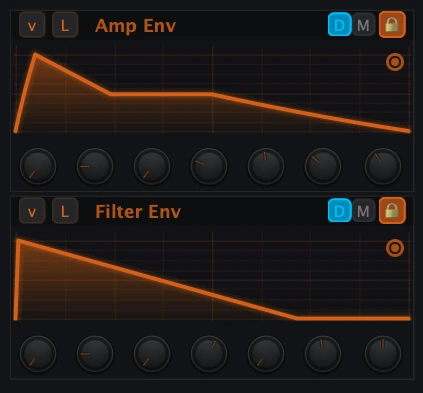
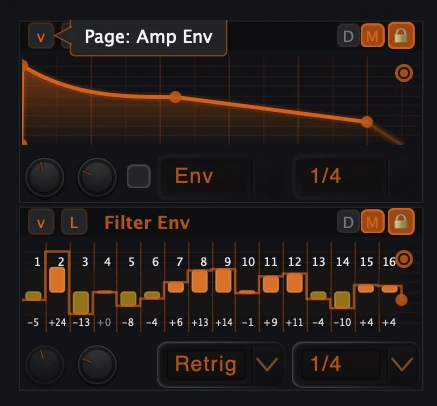
Figure 2. Compact envelope pair: small graph displays, page toggle, label toggle, DAHDSR/MSEG buttons, lock button and compact controls.Back to top
2. Quick Start
Classic amp envelope
Open the Amp Env panel.
Select DAHDSR.
Use Attack to set how quickly the sound starts.
Use Decay and Sustain to set the body of the note.
Use Release to set how long the sound fades after note-off.
Use Curve for a sharper or softer feel.
Filter pluck
Open Filter Env and choose DAHDSR for a simple contour.
Use a fast Attack, short Decay and low Sustain.
Raise the filter envelope amount in the filter section or route Filter Env in the Mod Matrix.
Adjust Release so the cutoff closes musically after note-off.
Tempo-synced MSEG motion
Open Filter Env, Mod Env 1 or Mod Env 2.
Switch the lane to MSEG.
Choose LFO Sync for host-synced movement or LFO Retrig for note-restarted cycles.
Choose a Rate such as 1/4, 1/8 or 1/16.
Enable Shapes and pick a starting shape such as Sine, Square, Sample & Hold or Chaos.
Route that envelope source to a target in the Mod Matrix.
Step-sequenced modulation
Switch a non-amp lane to MSEG and choose LFO Retrig or LFO Sync.
Open the context menu and choose Convert to Step Sequencer.
Choose 8, 16 or 32 steps.
Drag steps to create a pattern.
Route the envelope source to WT Position, filter cutoff, pitch, FX amount or another modulation target.
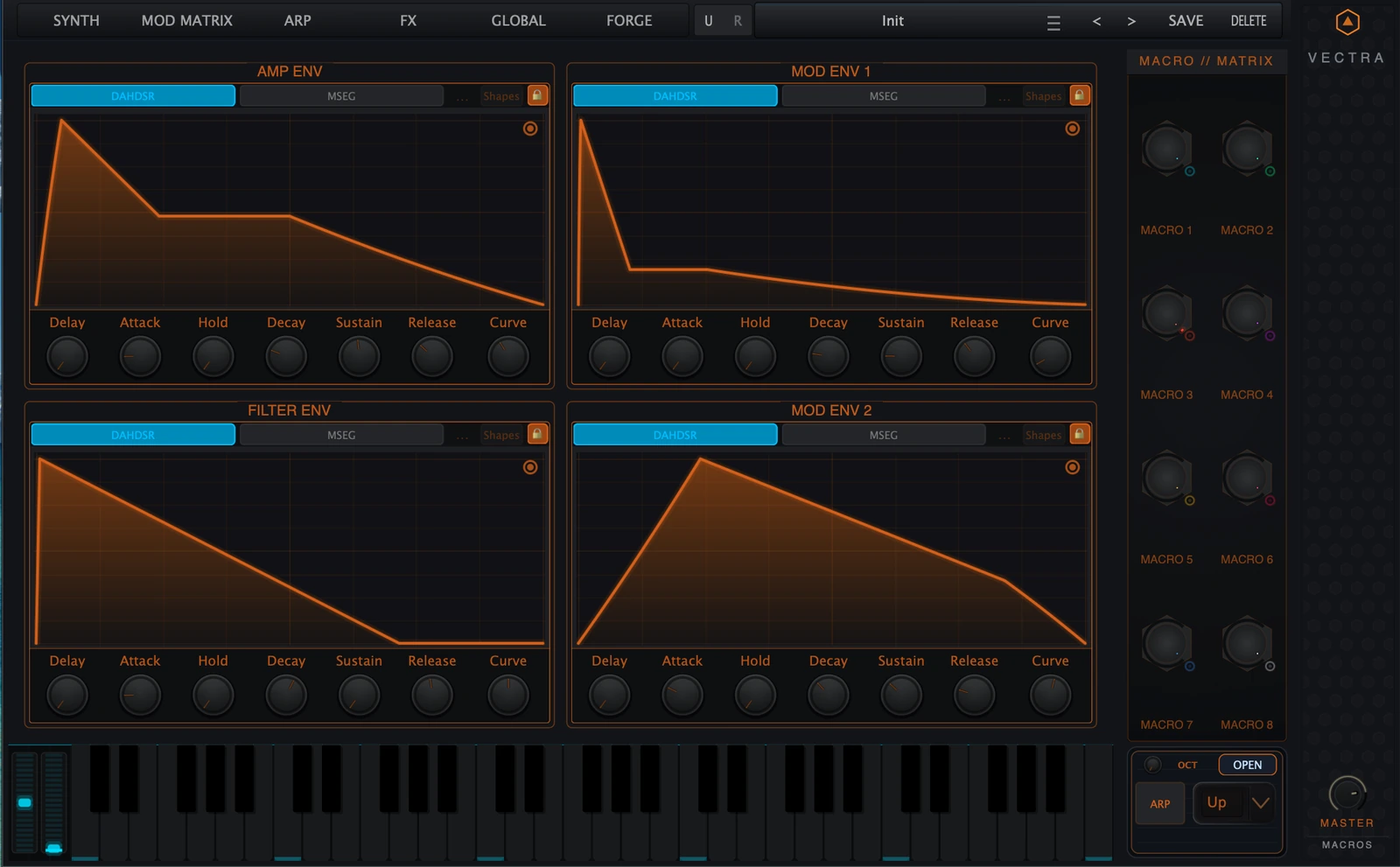
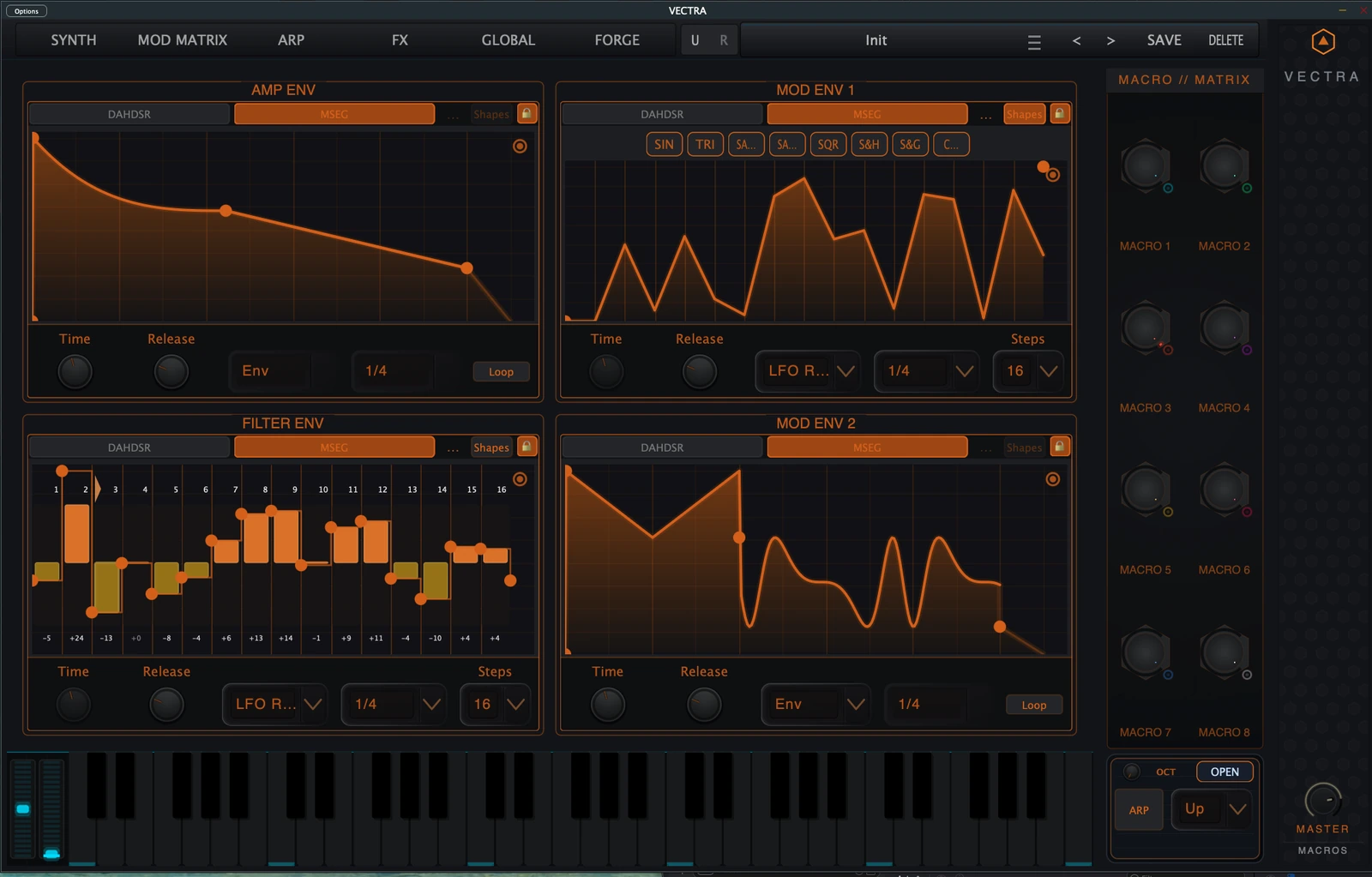
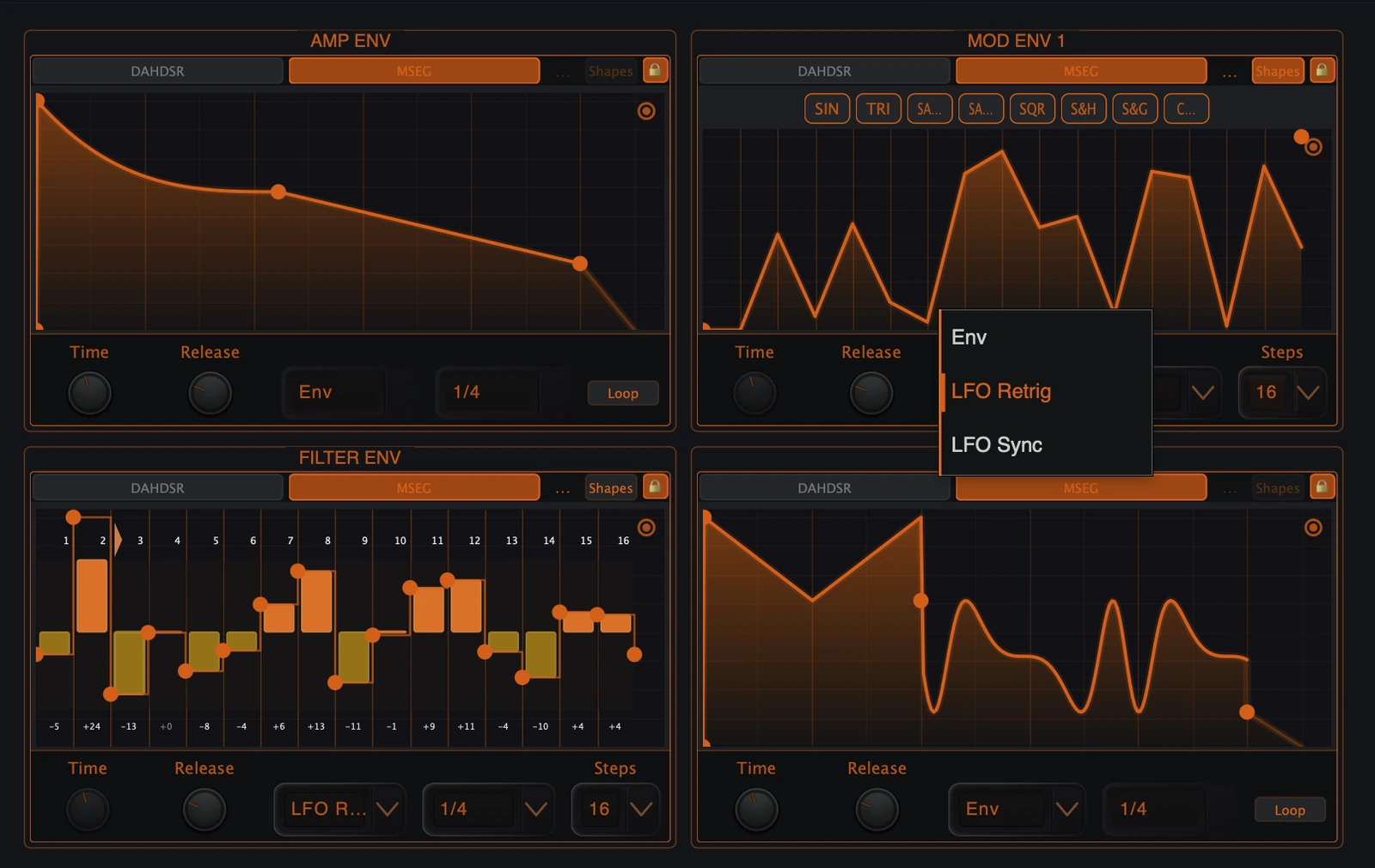
The full editor shows the envelope lanes as a modular work surface. The screenshots below show both the DAHDSR and MSEG identities of the system. The right-side Macro Matrix remains available because envelopes are part of the wider modulation architecture.
Figure 3. Full four-envelope view in DAHDSR mode: Amp Env, Filter Env, Mod Env 1 and Mod Env 2.Figure 4. Full four-envelope view in MSEG mode, including Env, LFO, step and shape workflows.
UI element
Meaning
DAHDSR / MSEG buttons
Switch the selected lane between classic staged envelope and editable multi-segment generator. Compact mode abbreviates these as D and M.
Graph
Shows the current envelope shape. DAHDSR is fixed-stage; MSEG is editable.
Page toggle
In compact paired panels, selects which lane is being edited or displayed.
L toggle
Shows or hides compact control labels.
Lock button
Locks the MSEG view. In LFO-style MSEG modes the view is locked to keep the cycle stable.
Mode dropdown
In MSEG mode, selects Env, LFO Retrig or LFO Sync where available.
Rate dropdown
Controls tempo-based timing in LFO-style MSEG modes.
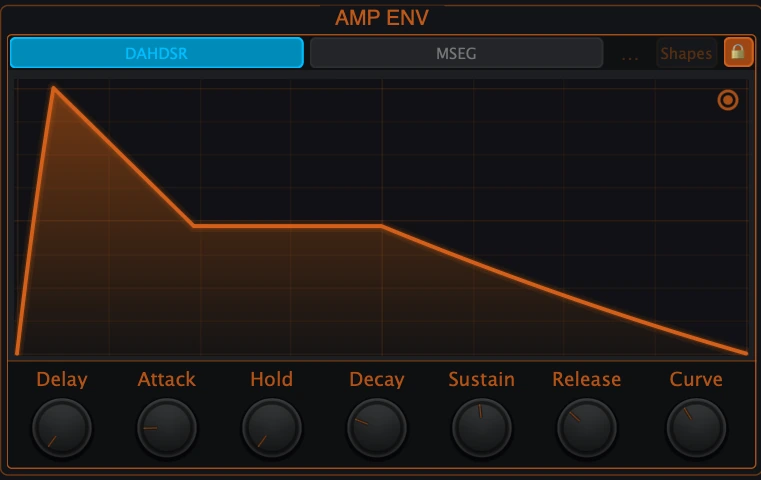
DAHDSR is the direct envelope mode. It behaves like a traditional synth envelope with an additional Delay stage before Attack and a Hold stage after Attack. It is the fastest choice for amplitude shaping, filter plucks, bass articulation, pads and simple modulation contours.
Figure 5. Full DAHDSR editor: Delay, Attack, Hold, Decay, Sustain, Release and Curve.
Control
Range / default behavior
What it changes
Delay
0.0 to 4.0 s | default 0.0 s
Waits before the envelope rises. Useful for delayed filter movement or secondary motion.
Attack
0.0005 to 4.0 s | lane default examples: Amp/Filter 0.005 s, Mod 0.05 s
Rise time from silence or low value toward maximum.
Hold
0.0 to 4.0 s | default 0.0 s
Keeps the envelope at maximum after Attack before Decay begins.
Decay
0.0005 to 4.0 s | lane default examples: Amp 0.1 s, Filter 0.5 s
Fall time from maximum toward Sustain.
Sustain
0.0 to 1.0 | Amp default 1.0, Filter/Mod defaults can be low
Held level while the note remains active.
Release
0.0005 to 4.0 s | lane default examples: Amp 0.05 s, Filter 0.2 s
Fade time after note-off.
Curve
-1.0 to +1.0 | default 0.0
Changes the feel of the contour. Negative values make the rise sharper; positive values soften it.
DAHDSR working method
For plucks, start with short Attack, short Decay, low Sustain and a controlled Release.
For pads, lengthen Attack and Release first, then use Sustain to decide how much level remains while a note is held.
For delayed motion, raise Delay before changing Attack; Delay changes when the contour starts, not how steeply it rises.
For punch, use short Attack and Hold with a Decay that matches the rhythm of the source.
MSEG means Multi-Segment Envelope Generator. Instead of being locked to fixed DAHDSR stages, an MSEG is made from editable points and segment shapes. It can act as a one-shot envelope, a retriggered LFO shape or a host-synced modulation pattern.
The MSEG graph is an editor, not only a display. Most creative work happens by adding points, shaping segments and using the context menu for larger structural edits.
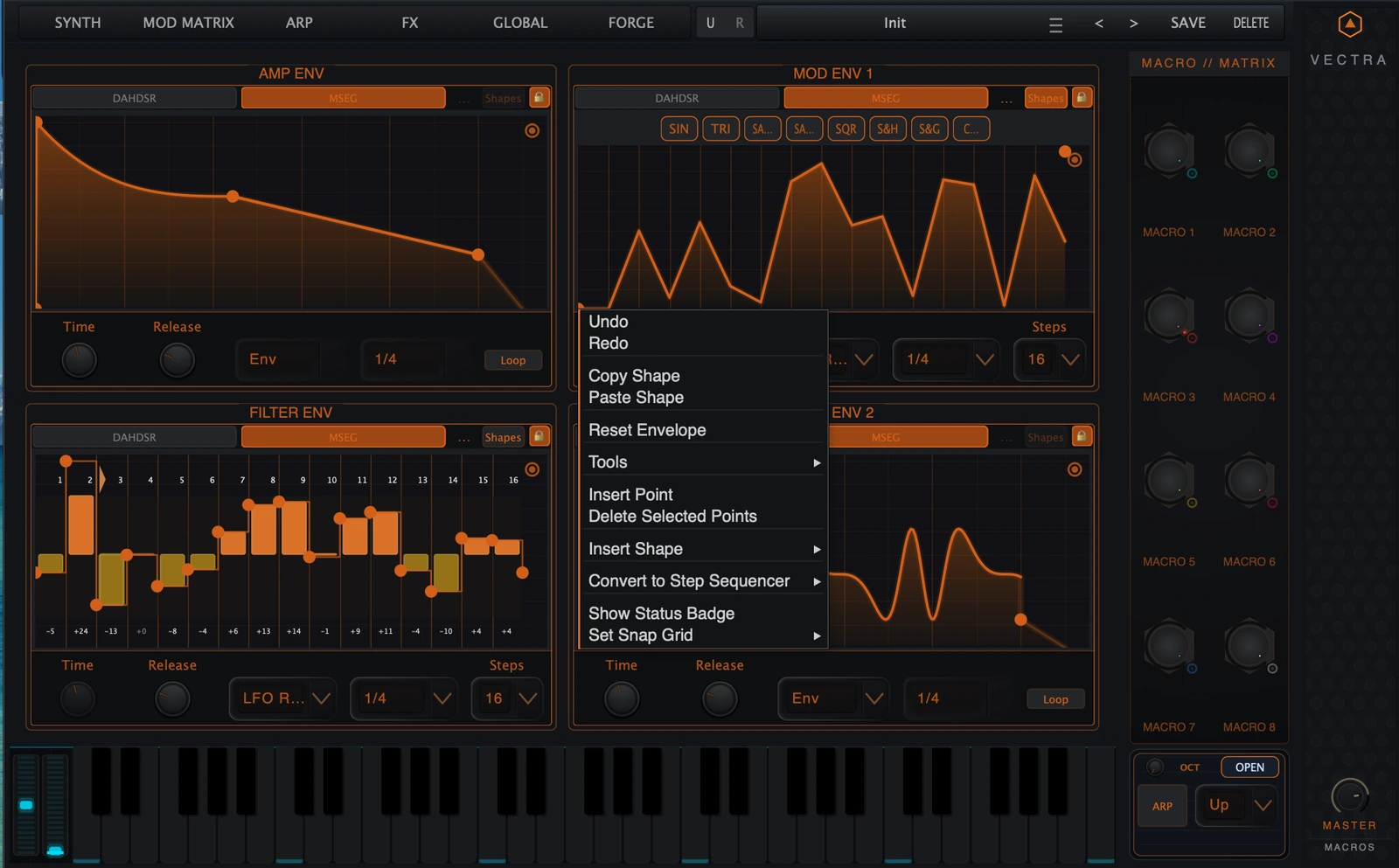
Figure 9. Context menu with shape, point, transform, step and view operations.
Operation
Result
Drag a point
Moves the point in time and level.
Double-click an empty area or segment
Inserts a point at the clicked time and level.
Double-click an editable interior point
Removes that point. First and last points are protected.
Drag-select / marquee
Selects multiple points for group operations.
Right-click
Opens the context menu. The menu changes depending on whether a point, segment or general area is selected.
Mouse wheel with View Lock off
Pans the MSEG view. Ctrl/Cmd + wheel zooms around the mouse position.
Shift while dragging
Constrains movement to a horizontal or vertical axis after the drag direction is clear.
Context-menu tools
Tool group
Items
Purpose
History
Undo, Redo
Step through edit history for the active MSEG shape.
Clipboard
Copy Shape, Paste Shape
Copy the current editable shape and paste it into another lane or state.
Segment shapes define how the value travels between two MSEG points. The full LFO editor also includes a shape toolbar for quickly replacing the whole LFO cycle with a common shape.
Shape
Behavior
Custom Curve
Smooth curve using point and segment tension. Best for hand-drawn envelope contours.
Linear / Ramp Up
Straight movement from the start level to the end level.
Ramp Down
Inverse ramp behavior between start and end levels.
Sine
Smooth half-cycle style motion.
Triangle
Rises and falls with a pointed peak inside the segment.
Square
Holds one value then switches abruptly to the other.
Exp Up / Exp Down
Exponential-style movement for slow-then-fast or fast-then-slow curves.
Log Up / Log Down
Log-style movement for alternative ease contours.
Bounce
Damped overshoot-style motion.
Stair
Uniform stair-stepped movement.
Sample & Hold
Deterministic stepped random values inside the segment.
Sample & Glide
Deterministic random values with interpolation between steps.
Chaos
Chaotic sine-derived movement, bounded inside the segment.
Step Sequencer
Holds the left value for the segment, producing step-style output.
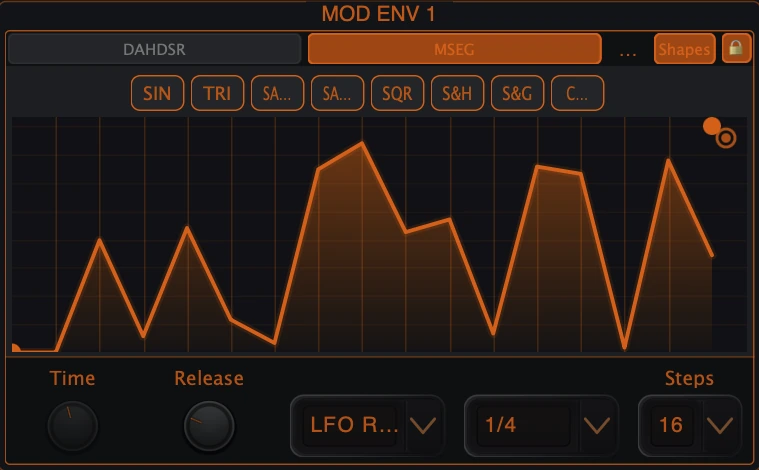
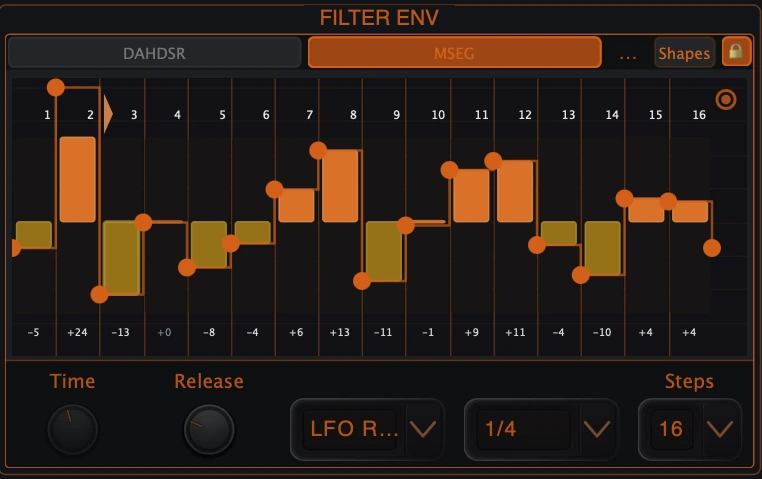
Step Sequencer mode turns an MSEG into a grid of equal-time steps while preserving the MSEG routing model. It is ideal for rhythmic filter sequences, wavetable scans, macro motion and gated FX movement.
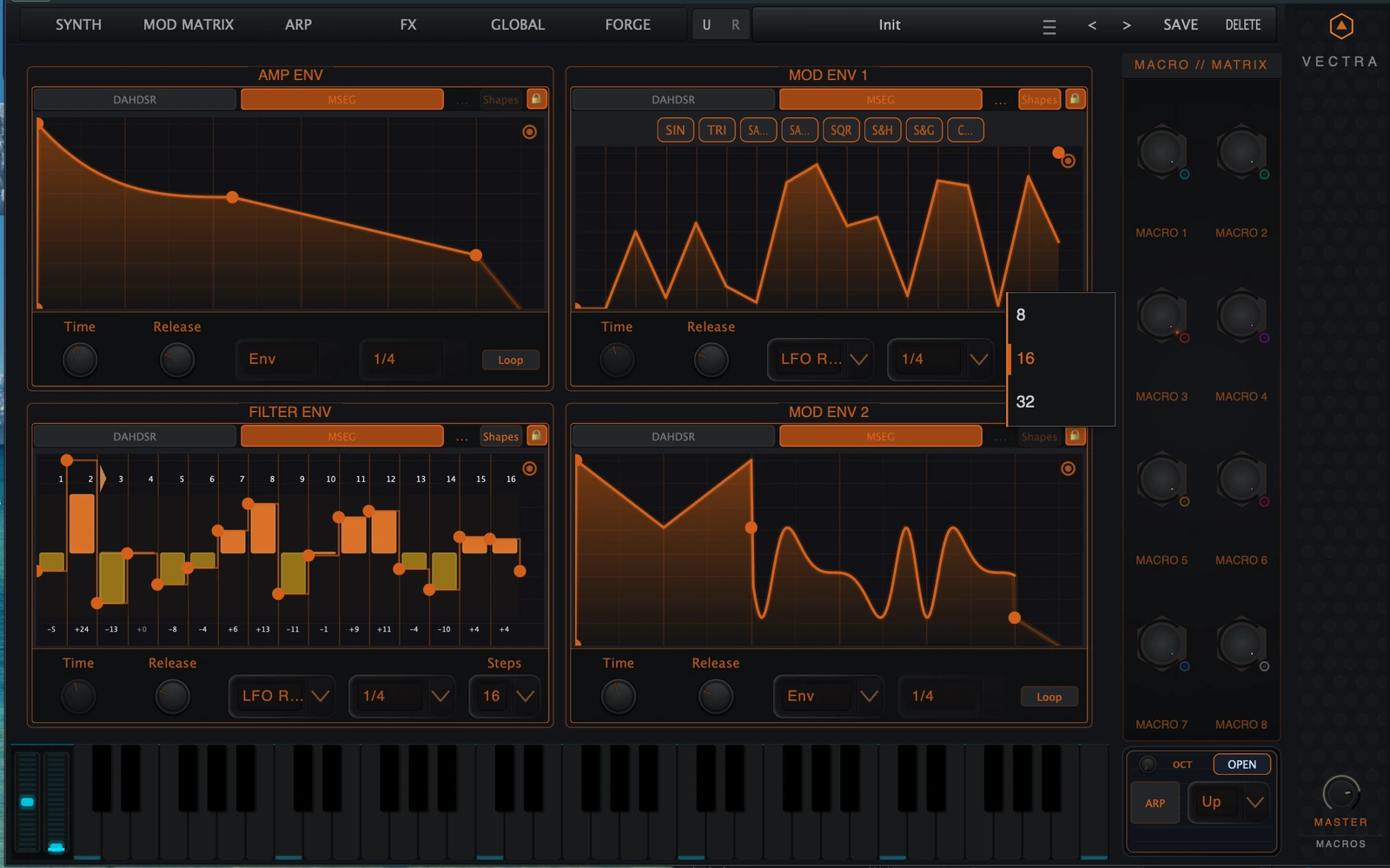
Figure 10. Step-style MSEG editing with 16 steps and rhythmic step values.Figure 11. Step count menu: 8, 16 or 32 steps.
Basic step workflow
Choose Filter Env, Mod Env 1 or Mod Env 2.
Switch to MSEG.
Choose LFO Retrig for note-restarted patterns or LFO Sync for arrangement-locked patterns.
Open the context menu and choose Convert to Step Sequencer.
Choose 8, 16 or 32 steps.
Edit step heights in the graph.
Route the envelope source to the desired destination in the Mod Matrix.
Step count
Best use
8 steps
Simple rhythmic accents, slower pulses and macro-style movement.
16 steps
Standard beat-synced modulation patterns, arpeggiated filter motion and trance-gate style movement.
32 steps
Fast detail, glitch motion, dense rhythmic modulation and high-resolution stepped curves.
Compact view is designed for fast edits while working on the Synth page. Full view is designed for precise graph editing, context-menu operations and advanced MSEG work.
View
Use it for
What is visible
Compact
Quick shaping while designing the patch.
Small graph, lane switching, D/M buttons, label toggle, lock button, compact knobs and compact MSEG controls.
Full
Detailed editing and troubleshooting.
Larger graph, full DAHDSR labels, MSEG playback controls, shape toolbar, context menus, step conversion and precise visual feedback.
Compact controls
Compact mark
Meaning
D
DAHDSR mode.
M
MSEG mode.
L
Show or hide compact labels.
Page toggle
Switches which lane in a paired compact panel is currently displayed.
Lock
Locks the MSEG view/camera where applicable.
Figure 12. Compact MSEG view with page indicator, D/M buttons and compact Env/Retrig controls.Back to top
11. Mod Matrix Integration
Vectra envelopes act as Mod Matrix sources. This is the main way to use Filter Env, Mod Env 1 and Mod Env 2 beyond their default roles. The envelope shape produces modulation; the Mod Matrix decides where it goes and how strongly it affects the target.
Envelope source
Typical targets
Amp Env
Amplitude behavior by default; can also be used as a timing reference where routed.
Filter Env
Filter cutoff, resonance-related movement, wavetable position, oscillator controls or FX parameters.
DAHDSR uses the stages Delay, Attack, Hold, Decay, Sustain and Release. Attack rises toward 1.0, Hold keeps the maximum value, Decay approaches the Sustain level, and Release fades after note-off. Times are stored in seconds and the output is clamped to a 0.0-1.0 control signal.
Parameter
Public range
Default examples
Delay
0.0 to 4.0 s
0.0 s
Attack
0.0005 to 4.0 s
Amp/Filter 0.005 s; Mod 1/2 0.05 s
Hold
0.0 to 4.0 s
0.0 s
Decay
0.0005 to 4.0 s
Amp 0.1 s; Filter 0.5 s; Mod 1/2 very short
Sustain
0.0 to 1.0
Amp 1.0; Filter/Mod often low by default
Release
0.0005 to 4.0 s
Amp 0.05 s; Filter 0.2 s; Mod 1/2 very short
Curve
-1.0 to +1.0
0.0
14.2 MSEG engine summary
MSEG evaluates editable points and segment shapes. The engine sorts points by time, precomputes curve tangents for custom curves and supports envelope playback, note-retriggered LFO playback and host-synced LFO playback. Release mode applies a decay from the last output value.
Item
Behavior
Point data
Time, level and point tension.
Segment data
Shape plus optional segment tension.
Envelope mode
Starts on note-on and releases on note-off. If not looping, the one-shot shape holds at the last point until note-off.
LFO Retrig
Resets phase at note-on and uses the selected tempo rate for the cycle.
LFO Sync
Aligns phase to host PPQ/project position where transport data is available.
Step mode
Step segments hold the left segment value; the UI provides equal-time step layout.
14.3 MSEG serialization and preset safety
The editor stores MSEG shapes as editable preset state. Env and LFO shapes are packed separately for each lane so switching between Env and LFO contexts can preserve different designs. If MSEG capability is not available for a lane, the panel safely resolves the lane to DAHDSR rather than leaving the preset in a broken state.
14.4 Source and destination boundaries
Category
Public behavior
Envelope as source
Amp Env, Filter Env, Mod Env 1 and Mod Env 2 can serve as modulation sources.
DAHDSR destinations
Delay, Attack, Hold, Decay, Sustain, Release and Curve per lane.
MSEG destinations
Time and Release per lane.
Editor-only state
Points, shapes, step count, rate menu, playback mode, mode switch and context-menu edits define the source; they are not direct modulation destinations.
14.5 Final operating summary
Use DAHDSR for immediate staged shaping and MSEG for designed modulation. Use Env mode for one-shot or note-shaped motion, LFO Retrig for note-restarted rhythmic cycles and LFO Sync for arrangement-locked motion. Use the Mod Matrix to send the resulting envelope source to musical targets, and use the full editor when the shape itself matters.