
Audionerdz / Vectra Documentation
Vectra Sample Engine
Sample Oscillators, Sample Bay, Looping, Markers and Wavetable Conversion
A professional operating manual for VECTRA's Sample Engine: dual sample oscillators, Sample Bay editing, SHOT/GATE/LOOP playback, waveform markers, loop crossfade, root note handling, sample-to-wavetable conversion and modulation integration.
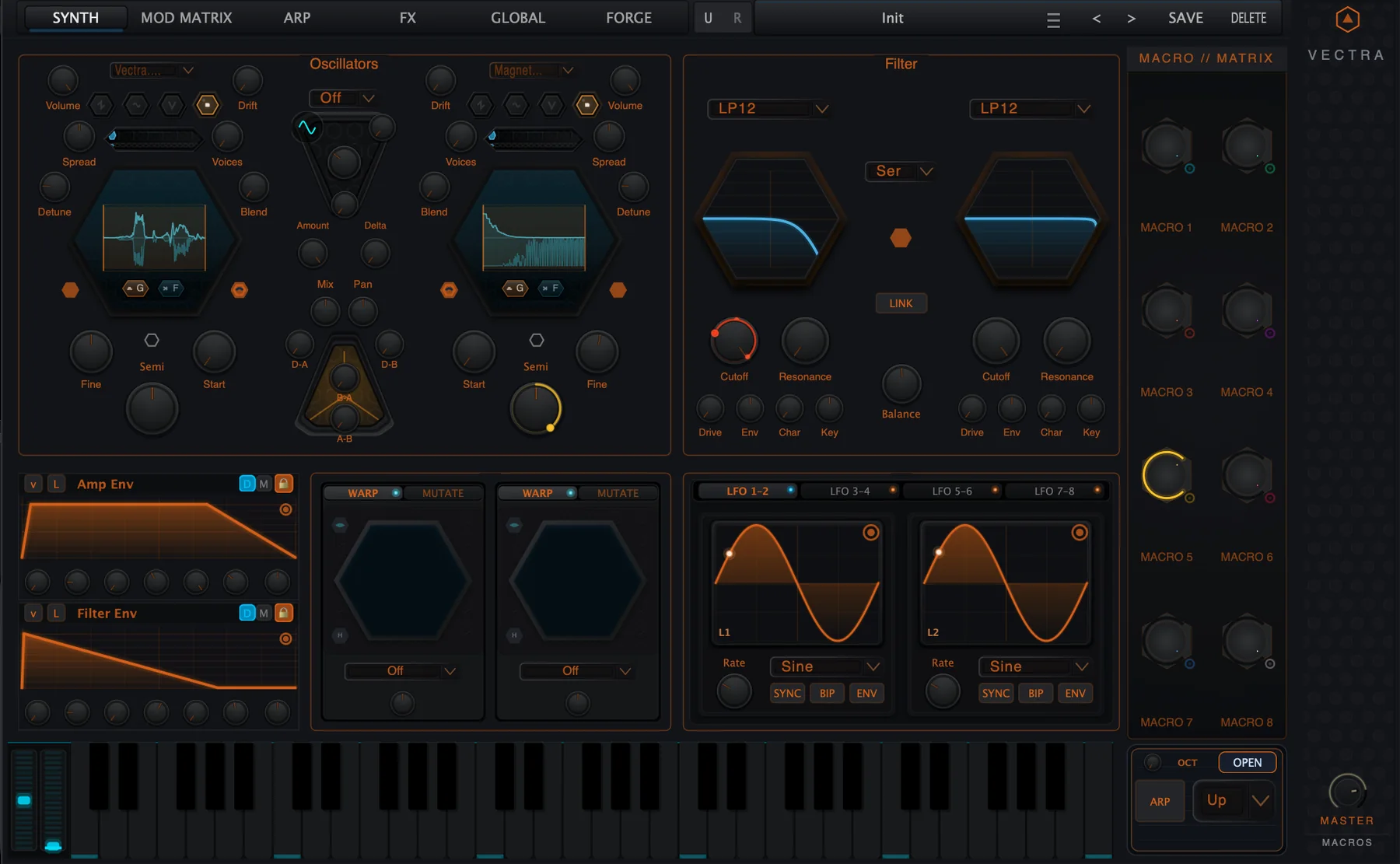
1. Overview
The Sample Engine turns Vectra into a dual sample-source synthesizer. OSC A and OSC B can load audio files and play them through the same core Vectra instrument path as the other oscillator engines: pitch, unison, filters, envelopes, LFOs, Living Matrix, Macro Bay and FX all remain available around the sample source.
It is designed for one-shot hits, vocal chops, sustained textures, loops, sampled instruments, hybrid layers and sample-derived wavetable creation. The Synth page gives fast access to loading and performance. The Sampler Editor gives detailed access to waveform markers, loop points, root note, crossfade, variance and diagnostics.
Signal path summary
| Stage | What happens |
|---|---|
| Load or drop sample | WAV, AIFF/AIF or FLAC is loaded into OSC A or OSC B. |
| Sample oscillator | Start, Root, Gain, Mode and Loop settings define the playable source. |
| Voice path | The sample passes through pitch, unison, envelopes and filters like the other oscillator engines. |
| Living Matrix | Sample Start, Gain, XFade and Variance can be modulated where exposed as destinations. |
| FX and output | The result moves through Vectra’s FX/output path like any other oscillator source. |
2. Quick Start
Load a sample into OSC A
- Select the Sample engine icon on OSC A.
- Click the sample selector or drop a WAV, AIFF/AIF or FLAC file onto the oscillator hex.
- Choose Load Sample if you are using the menu.
- Play the keyboard to audition the sample.
- Use Start, Semi, Fine, Volume and the filter section to place the sample inside the patch.
- Open Sample Bay for detailed marker and loop editing.
Create a looped texture
- Load a sustained or textured sample.
- Open the Sampler Editor.
- Set Mode to LOOP.
- Move Loop Start and Loop End around a stable region.
- Enable Snap Zero while editing markers.
- Increase XFade if the loop clicks.
- Use Fit and the overview rail to return to the full sample view.
Convert a sample into a Vectra wavetable
- Load a valid sample.
- Open the sample menu.
- Choose Convert to Wavetable.
- Select Single Cycle or Texture 64.
- Wait for conversion and cache writing to finish.
- Use the generated material in Vectra’s wavetable workflow.
3. Sample Engine on the Synth Page
On the Synth page, Sample mode replaces the oscillator core display with a waveform/drop-zone view. The oscillator still keeps its pitch, level and unison controls, but the mode-specific control changes to Start. This lets you move the note-on start position through the sample while keeping the rest of Vectra’s voice architecture intact.
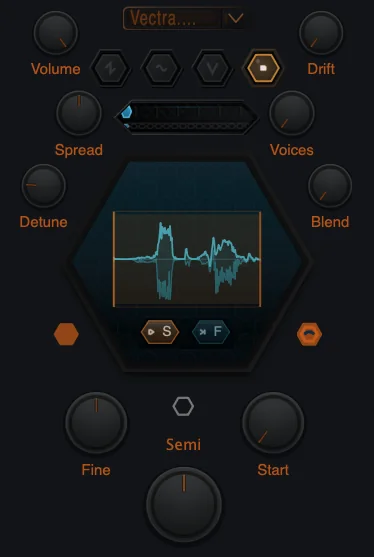
| Control | Meaning |
|---|---|
| Sample selector | Shows the loaded file or opens sample loading and management commands. |
| Drop zone / waveform hex | Receives dropped audio files and previews the loaded waveform. |
| Start | Moves the playback start position inside the loaded sample. |
| Semi / Fine | Transpose and fine tune the sample oscillator. |
| Volume | Sets oscillator level before the rest of the Synth path. |
| Voices / Detune / Spread / Blend / Drift | Unison and performance controls remain available around the sample oscillator. |
4. Opening the Sampler Editor
The Sampler Editor is the expanded Sample Bay workspace. It is the correct place for detailed editing: marker placement, loop setup, root note, direction, crossfade, variance, waveform navigation and readout inspection.
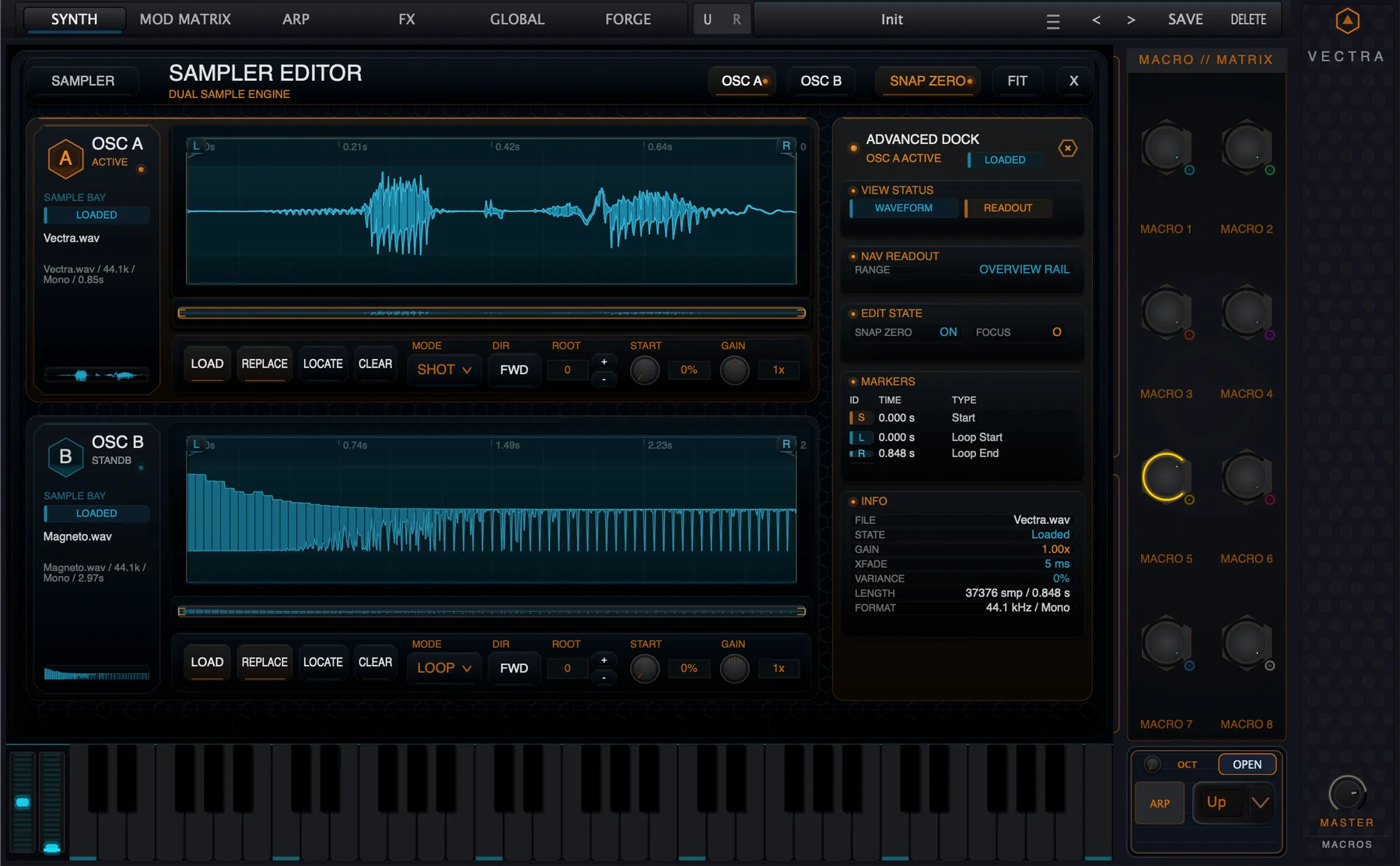
Use the OSC A and OSC B buttons at the top of the editor to choose the focused sample lane. The focused lane drives the Advanced Dock readout and editing focus, while the other lane can remain visible for comparison.
| Top-bar item | Function |
|---|---|
| OSC A / OSC B | Selects the active sample lane for editing and readout. |
| SNAP ZERO | Helps marker edits land near zero crossings. |
| FIT | Fits the waveform view back to the full sample. |
| X | Closes the Sampler Editor and returns to the surrounding Synth page. |
5. Loading, Replacing and Locating Samples
Sample management is available from the oscillator menu and from the Sampler Editor bay controls. The menu is intentionally practical: load, replace, locate missing material, clear the slot, convert to wavetable, reveal the file in Finder, or copy the path.
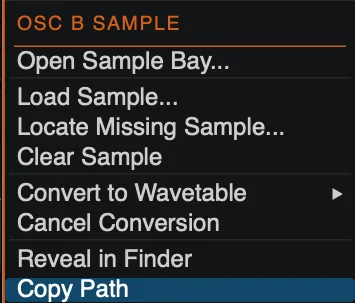
| Command | Use |
|---|---|
| Open Sample Bay | Opens the full Sampler Editor. |
| Load Sample | Loads a supported audio file into the selected oscillator. |
| Locate Missing Sample | Reconnects a preset to a file that has moved. |
| Clear Sample | Removes the current sample reference from the oscillator. |
| Convert to Wavetable | Creates Vectra-generated wavetable material from the sample. |
| Cancel Conversion | Stops an active conversion job. |
| Reveal in Finder | Opens the original file location if it still exists. |
| Copy Path | Copies the current file path for troubleshooting or file management. |
6. Playback Modes: SHOT, GATE and LOOP
The Mode selector chooses how the loaded sample behaves when a note is triggered. These modes define the musical role of the sample oscillator.
| Mode | Best for | Behavior |
|---|---|---|
| SHOT | Drums, hits, vocal chops, impacts | Plays the selected region once. |
| GATE | Playable instruments and key-held samples | Plays while the note is held and follows the voice release path. |
| LOOP | Drones, pads, textures, sustained tones | Repeats the loop region between Loop Start and Loop End. |
7. Waveform Markers
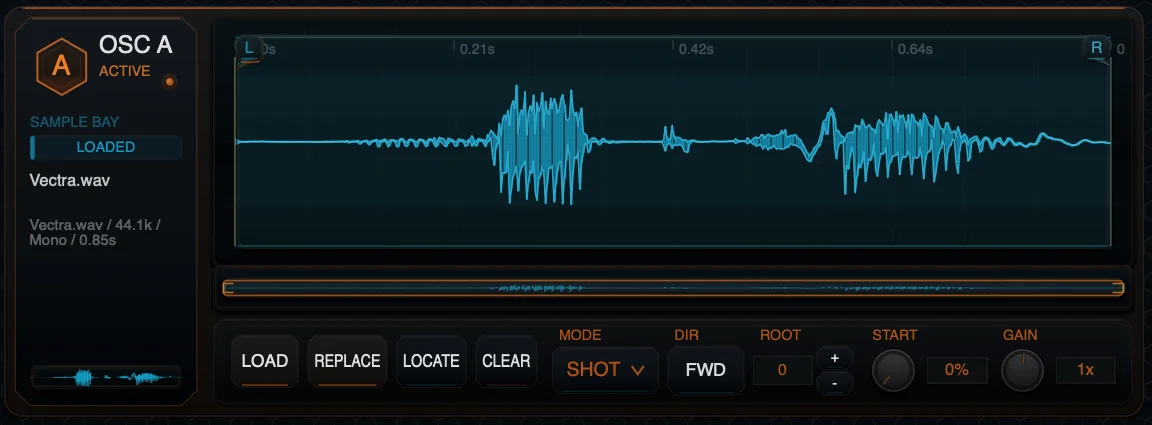
The waveform editor is marker-based. Markers define where playback starts, where the sample region ends, and where loop playback enters and exits. The Advanced Dock gives a precise readout of marker identity and timing.
| Marker | Meaning |
|---|---|
| Start | Beginning of the playable region. |
| End | End of the playable region. |
| Loop Start | Entry point for looping playback. |
| Loop End | Exit point for looping playback. |
Move markers carefully, then retrigger the note if the note was already sounding. Marker changes affect how the next playback instance starts and loops.
Back to top8. Loop Editing, Snap Zero and XFade
Loop editing is the most sensitive Sample Engine workflow. A loop has to contain useful audio content, have enough length to repeat reliably, and avoid sharp discontinuities at the loop boundary. Vectra gives you two tools for this: Snap Zero and XFade.
| Tool | Purpose | Practical advice |
|---|---|---|
| Snap Zero | Helps place markers near zero crossings. | Use it while moving Start, End and loop markers. |
| XFade | Smooths the loop transition. | Increase gradually if the loop clicks. Very short loops limit the possible crossfade. |
| Overview rail | Shows where you are in the full sample. | Use it to navigate long files, then press Fit to return to full view. |
9. Root Note, Direction and Pitch
Root tells Vectra which MIDI note represents the original pitch of the sample. If Root is wrong, the sample will transpose incorrectly across the keyboard. Direction chooses forward or reverse playback.
| Control | Meaning |
|---|---|
| Root | MIDI note of the sample’s original pitch. Default is 60. |
| DIR FWD | Forward playback. |
| DIR REV | Reverse playback. |
| Semi / Fine | Oscillator pitch controls for musical transposition around the root mapping. |
For pitched material, set Root first, then use Semi and Fine for creative transposition. For drums and noise textures, Root can often remain at its default unless keyboard tracking matters.
Back to top10. Gain, Start and Variance
The Sample Engine has direct controls for level, start position and controlled randomness. These are powerful because they can turn one source file into many playable variations.
| Control | Range | Use |
|---|---|---|
| Start | 0-100% | Moves the sample playback start position. Useful for chops, offsets and scan-like performance. |
| Gain | 0-2x | Scales sample level before the rest of the voice path. |
| Var | 0-100% | Adds start variation/randomness for repeated triggers. Useful for avoiding identical repeated playback. |
| XFade | 0-200 ms | Smooths loop boundaries. |
11. Advanced Dock
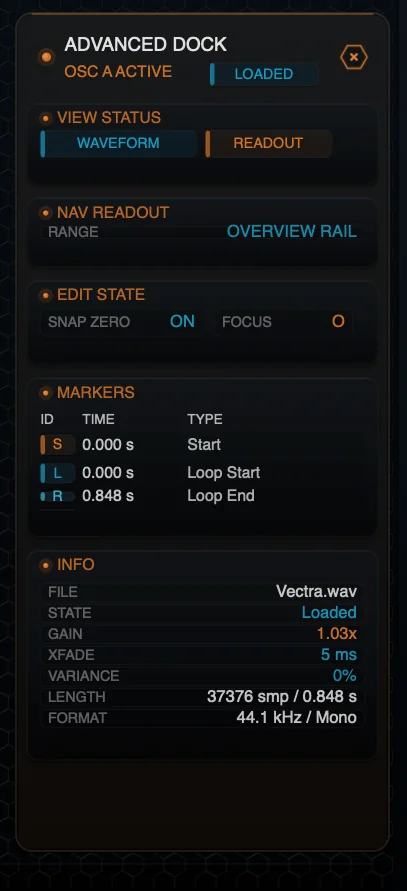
The Advanced Dock is a focused readout panel for the active sample lane. It helps you inspect the current view, navigation range, edit state, marker positions and file information without guessing from the waveform alone.
| Dock section | Shows |
|---|---|
| View Status | Waveform/readout display state. |
| Nav Readout | Current range and overview rail status. |
| Edit State | Snap Zero and focus state. |
| Markers | Marker IDs, times and marker types. |
| Info | File name, loaded state, gain, XFade, variance, length and format. |
12. Sample-to-Wavetable Conversion
Sample-to-wavetable conversion connects the Sample Engine to Vectra’s wavetable workflow. Single Cycle and Texture 64 create Vectra-native generated wavetable material from loaded sample content.
| Conversion mode | Meaning | Good source material |
|---|---|---|
| Single Cycle | Creates a playable single-cycle style wavetable from a short region. | Stable tonal material, bass waves, vocal vowels, simple waveforms. |
| Texture 64 | Creates a 64-frame wavetable texture from a broader sample region. | Evolving textures, vocal motion, noisy tones, impacts, spectral material. |
13. Modulation and Living Matrix Integration
The Sample Engine participates in Vectra’s modulation system where sample-specific controls are exposed as destinations. This means sample behavior can be performed and animated from the Living Matrix and Macro Bay.
| Safe modulation target | Typical use |
|---|---|
| Sample Start | Vocal chops, granular-style offsets, scan motion, rhythmic sample slicing. |
| Sample Gain | Dynamic level shaping, macro-controlled layers, velocity-style emphasis. |
| Sample XFade | Loop smoothing changes, evolving sustained textures. |
| Sample Variance | Controlled variation for repeated notes. |
File loading, Locate, Clear, Reveal, Copy Path and Convert are editing commands, not musical modulation destinations.
Back to top14. Practical Recipes
One-shot percussion layer
- Load a percussion sample into OSC A.
- Set Mode to SHOT.
- Tune with Semi/Fine.
- Use Amp Env for punch and release.
- Layer with OSC B if needed.
Looping drone
- Load a sustained source.
- Open Sample Bay.
- Set Mode to LOOP.
- Find a stable loop area.
- Use XFade and filtering to smooth the repeat.
Reverse texture
- Load a sample with an interesting tail.
- Set Direction to REV.
- Use SHOT for reverse hits or LOOP for texture.
- Add reverb/delay in FX.
Rooted sample instrument
- Load a pitched sample.
- Set Root to the sample’s original note.
- Use Gate or Loop.
- Shape the note with Amp Env and filters.
Sample-start macro
- Route Macro 1 to Sample Start.
- Set moderate depth.
- Rename Macro 1 to START or CHOP.
- Play repeated notes while moving the macro.
Texture 64 wavetable
- Load a rich sample.
- Choose Convert to Wavetable.
- Select Texture 64.
- Use the generated table in WT mode and scan with WT Pos.
15. Troubleshooting
| Issue | Likely cause | Fix |
|---|---|---|
| Sample will not load | Unsupported format or missing access. | Use WAV, AIFF/AIF or FLAC and confirm Sample Engine access. |
| Preset says sample missing | The referenced file moved or was deleted. | Use Locate Missing Sample or Clear Sample. |
| Start changes are not heard immediately | A note is already sounding with latched settings. | Trigger a new note. |
| Loop clicks | Loop boundary is discontinuous. | Use Snap Zero, move markers and increase XFade. |
| Loop does not behave as expected | Loop region is too short or invalid. | Widen Loop Start/Loop End and use a region with useful audio. |
| Pitch is wrong | Root note is wrong. | Set Root to the original sample note. |
| Reveal in Finder fails | Original path no longer exists. | Use Locate Missing Sample or Copy Path for diagnostics. |
| Convert is unavailable | No valid sample is loaded or a conversion is already active. | Load a sample and wait for conversion state to clear. |
| Sample sounds mono | The source file is mono. | Use stereo source material or process the mono layer through unison/FX. |
16. Technical Appendix
Technical model
In Vectra, Sample is a real oscillator engine state. It is selected per oscillator and then fed through the same voice architecture as the other engines. The file itself is managed as a Sample Asset, while playback is handled by the sample oscillator voice path.
Note-on latching
Playback mode, region, loop markers, crossfade, root note, reverse, variance and gain are captured at note-on for stable playback. This is why some edits require a new trigger before they become audible on the playing voice.
Loop crossfade
Loop XFade is limited by the actual loop length. Very short loops cannot use long crossfades, because the crossfade cannot be longer than the available loop region.
Back to top17. Parameter Appendix
| Parameter | Range / values | Default / note |
|---|---|---|
| Sample Mode | SHOT / GATE / LOOP | Default: GATE. |
| Sample Start | 0.0-1.0 | Displayed as 0-100%. |
| Sample End | 0.0-1.0 | Usually full length by default. |
| Loop Start | 0.0-1.0 | Loop entry point. |
| Loop End | 0.0-1.0 | Loop exit point. |
| Loop XFade | 0-200 ms | Default shown as 5 ms in screenshots. |
| Root | 0-127 MIDI note | Default 60. |
| Reverse | Off / On | UI shows FWD or REV. |
| Variance | 0-100% | Adds start variation for repeated triggers. |
| Gain | 0-2x | Default 1x. |
18. Preset Compatibility Notes
Sample presets store references to sample material. If a preset cannot find its referenced file, the Sample Engine exposes a missing-sample recovery path. Use Locate Missing Sample to reconnect the preset to the moved file. Use Clear Sample when the source no longer belongs in the patch.
When sharing presets, include the required sample files and use the supported library/package workflow for your Vectra release.
Back to top