Audionerdz / Vectra Documentation
Vectra Preset Browser and Library
Presets, Store Content, Save/Load, Tags, Locks and License Sync
A professional operating manual for VECTRA's Preset Browser and Library system: browsing, search, tags, sources, preset loading, user saves, favorites, Store content, locked presets, Sound DNA requirements and Audionerdz purchase sync.
1. Overview
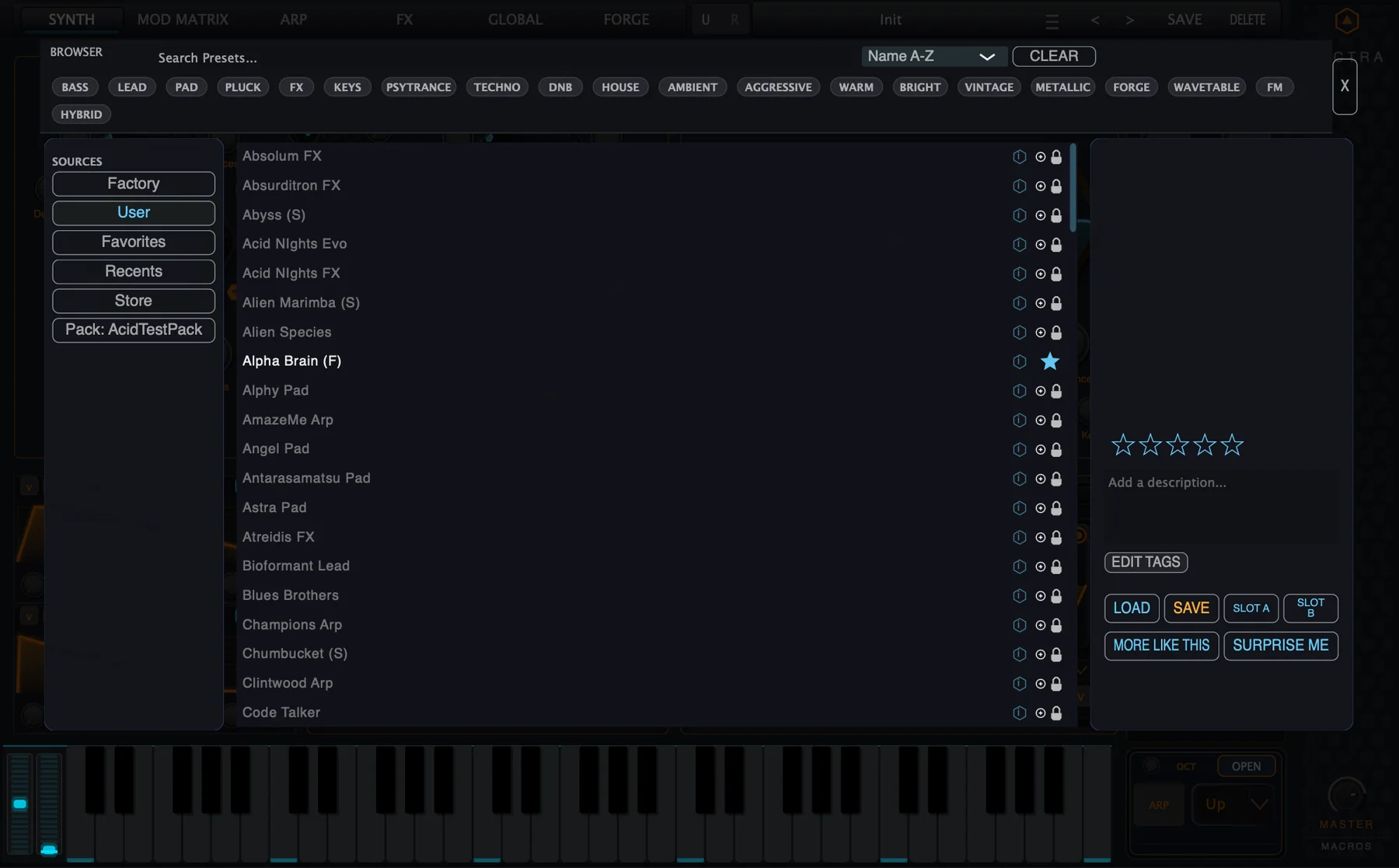
The Preset Browser is Vectra’s central sound and content navigation system. It lets you search, filter, sort, load, save, rate, tag and organize sounds, while also showing which content is available, owned, locked or missing on the current installation.
The browser is also the front door to Vectra’s content ecosystem: factory presets, user presets, favorites, recently used sounds, installed packs, Store content, Sound DNA requirements and Audionerdz purchase sync all meet here.
Back to top2. Quick Start
Load a factory preset
- Open the Preset Browser from the top Preset Bar.
- Select Factory in the Sources panel.
- Use search, tags or sorting to narrow the result list.
- Select a preset to inspect its Details panel.
- Press Load, or double-click the preset when it is available.
Save a user preset
- Create or edit a sound.
- Press Save in the top bar or choose Save Changes from the Actions menu.
- Enter a clear preset name.
- Save the preset.
- Find it later under User in the Sources panel.
Sync purchases
- Open the License Center from the Actions menu.
- Choose the Sync section.
- Press Sync Audionerdz Purchases.
- Complete the account flow if prompted.
- Return to the Preset Browser and check the previously locked item.
3. Preset Bar
The top Preset Bar is the always-available preset control strip. It shows the current preset name and exposes the browser/menu button, previous/next arrows, Save and Delete.
| Control | Use |
|---|---|
| Preset name | Shows the current loaded preset. |
| Menu / browser button | Opens the Actions menu or the full browser workflow. |
| Previous / Next | Steps through presets in the current browsing context. |
| Save | Opens the Save Preset dialog or saves changes, depending on context. |
| Delete | Opens a confirmation before deleting the current preset when deletion is available. |
4. Opening the Preset Browser
Opening the Preset Browser dims the current panel and places the browser overlay above the instrument. The overlay contains search and tags at the top, source selection at the left, results in the center and details on the right.
5. Search, Tags and Sorting
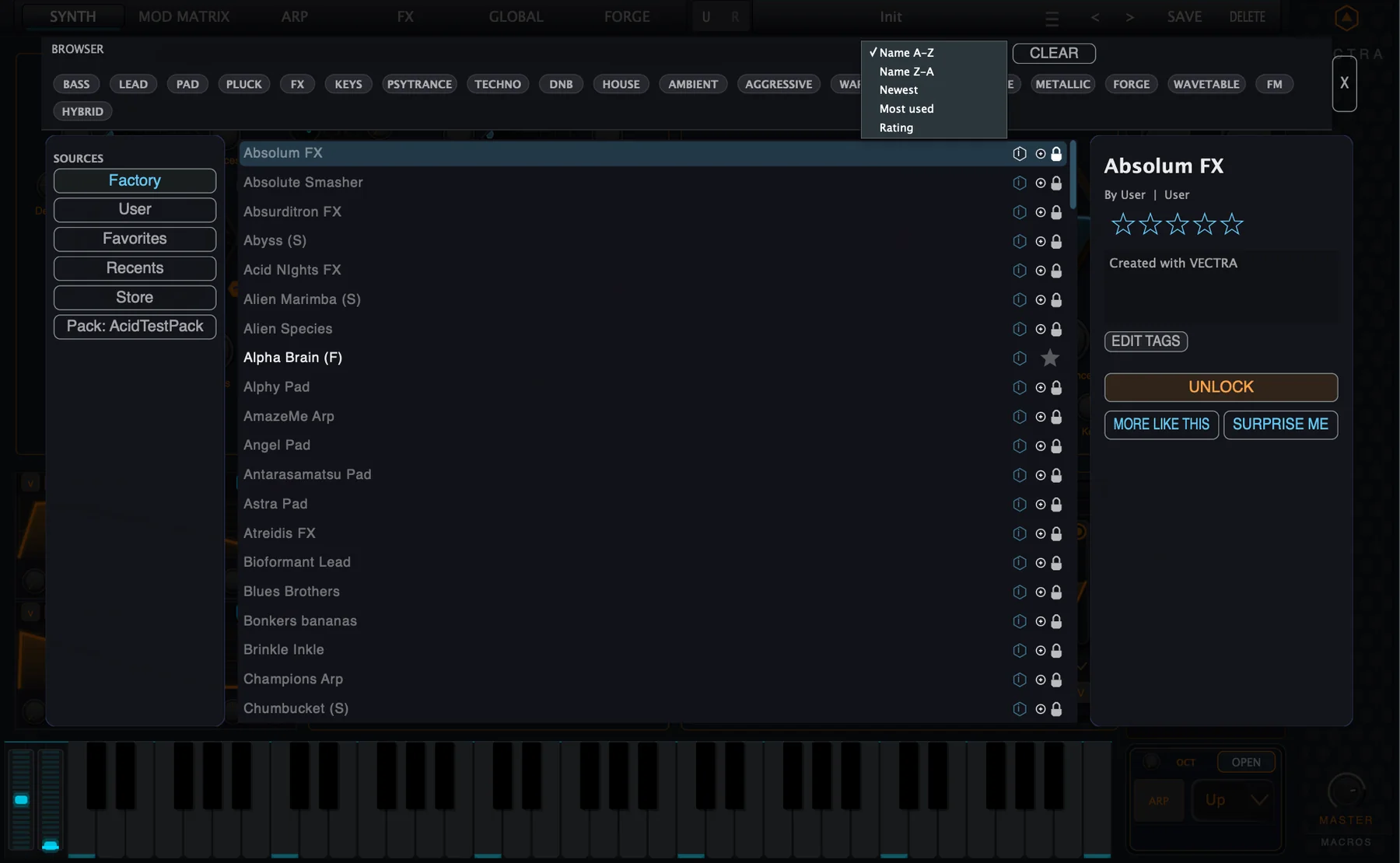
Search filters the result list by typed text. Tag chips narrow results by musical role, style, tone or technology. Sorting changes the order of the visible results.
| Tool | What it does | Example use |
|---|---|---|
| Search | Filters by text. | Type bass, arp, lead, alien or another sound name. |
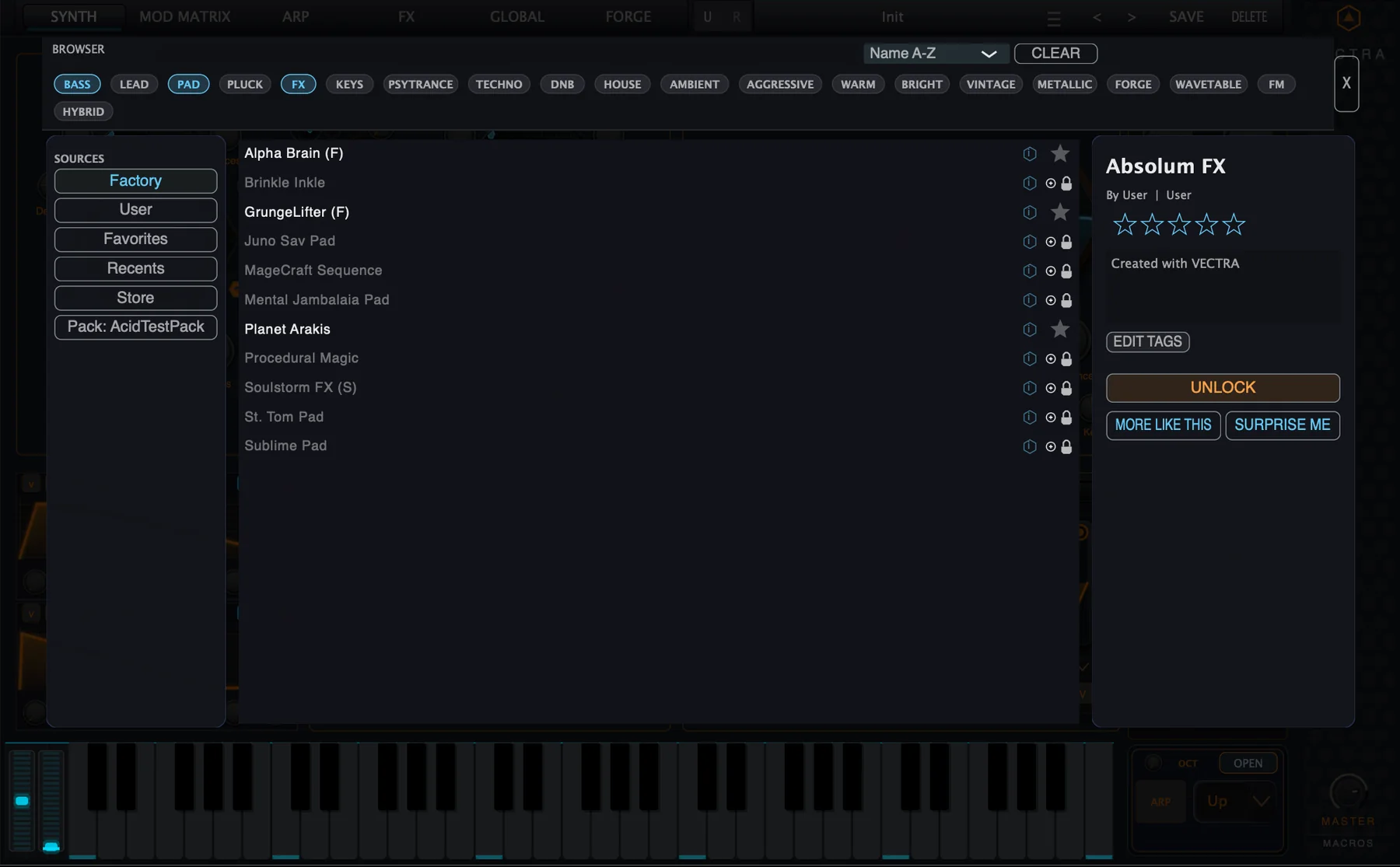
| Tag chips | Adds musical or technical filters. | Bass + Forge, Pad + Warm, FX + Metallic. |
| Clear | Removes the current search/filter state. | Return to a broad browser list. |
| Sort | Changes result order. | Name A-Z, Newest, Most used or Rating. |
6. Sources: Factory, User, Favorites, Recents, Store and Packs
The Sources panel chooses which preset or content pool is currently shown. It is the fastest way to switch between factory content, your own saved sounds, favorites, recently used presets, Store content and installed packs.
| Source | Meaning |
|---|---|
| Factory | Built-in Vectra presets and factory sounds. |
| User | Presets you saved or imported into the user library. |
| Favorites | Presets marked with the favorite star. |
| Recents | Recently loaded or interacted-with presets. |
| Store | Available and owned Vectra content products and add-ons. |
| Pack | A specific installed preset/content pack. |
7. Preset List and Details Panel
The center list shows the matching sounds or content items. Selecting a row updates the Details panel. The Details panel is where you inspect the selected item and perform actions such as Load, Save, Slot A/B assignment, rating, tag editing, More Like This, Surprise Me or Unlock.
| Area | What to look for |
|---|---|
| Preset row | Preset name, selection state and availability icons. |
| Info / DNA icon | Opens or indicates compatibility and requirement information. |
| Favorite star | Marks or displays a favorite preset. |
| Lock icon | Shows that additional content, module access or edition access is required. |
| Details title | Selected preset or content item name. |
| Rating stars | Personal organization rating for the selected item. |
| Description / notes | Preset notes or user description field. |
The right panel is context-sensitive. Available presets show Load and Save actions. Locked or Store items can show Unlock or ownership actions instead.
Back to top8. Loading, Auditioning and Slots
Loading applies the selected preset to Vectra. The browser can also support fast comparison workflows through Slot A and Slot B. Use slots when you want to compare or stage two sounds without losing your place in the browser.
| Action | Use |
|---|---|
| Load | Loads the selected available preset. |
| Double-click preset | Quickly loads an available preset from the list. |
| Slot A | Assigns the selected preset to slot A for comparison. |
| Slot B | Assigns the selected preset to slot B for comparison. |
| More Like This | Finds related presets based on the current selection. |
| Surprise Me | Chooses a new direction when you want fast discovery. |
9. Saving and Deleting Presets
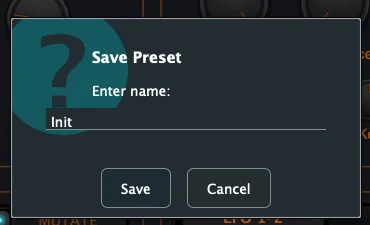
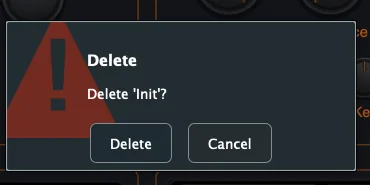
Save and Delete are explicit preset-management actions. Saving creates or updates user preset content. Delete opens a confirmation before anything is removed.
| Save workflow | Result |
|---|---|
| Save Changes | Stores changes to the current preset where saving is allowed. |
| Save dialog | Lets you name the preset before saving it into the user library. |
| User source | Where saved user presets can be found later. |
10. Favorites, Ratings, Tags and Notes
Favorites, ratings, tags and descriptions make the browser useful over time. They leave the sound unchanged and help you organize the library around your own workflow habits.
| Feature | Use |
|---|---|
| Favorite star | Marks sounds you want to return to quickly. |
| Rating stars | Ranks a sound by usefulness or quality for your workflow. |
| Edit Tags | Adds or changes tags used for browsing and filtering. |
| Description / notes | Stores a short note about the preset or intended use. |
11. Store View and Owned Content
Store view changes the browser into a content catalog. It can show available products, owned content and add-on categories such as expansions, Forge DNA, wavetables, filters, FX, skins and system content.
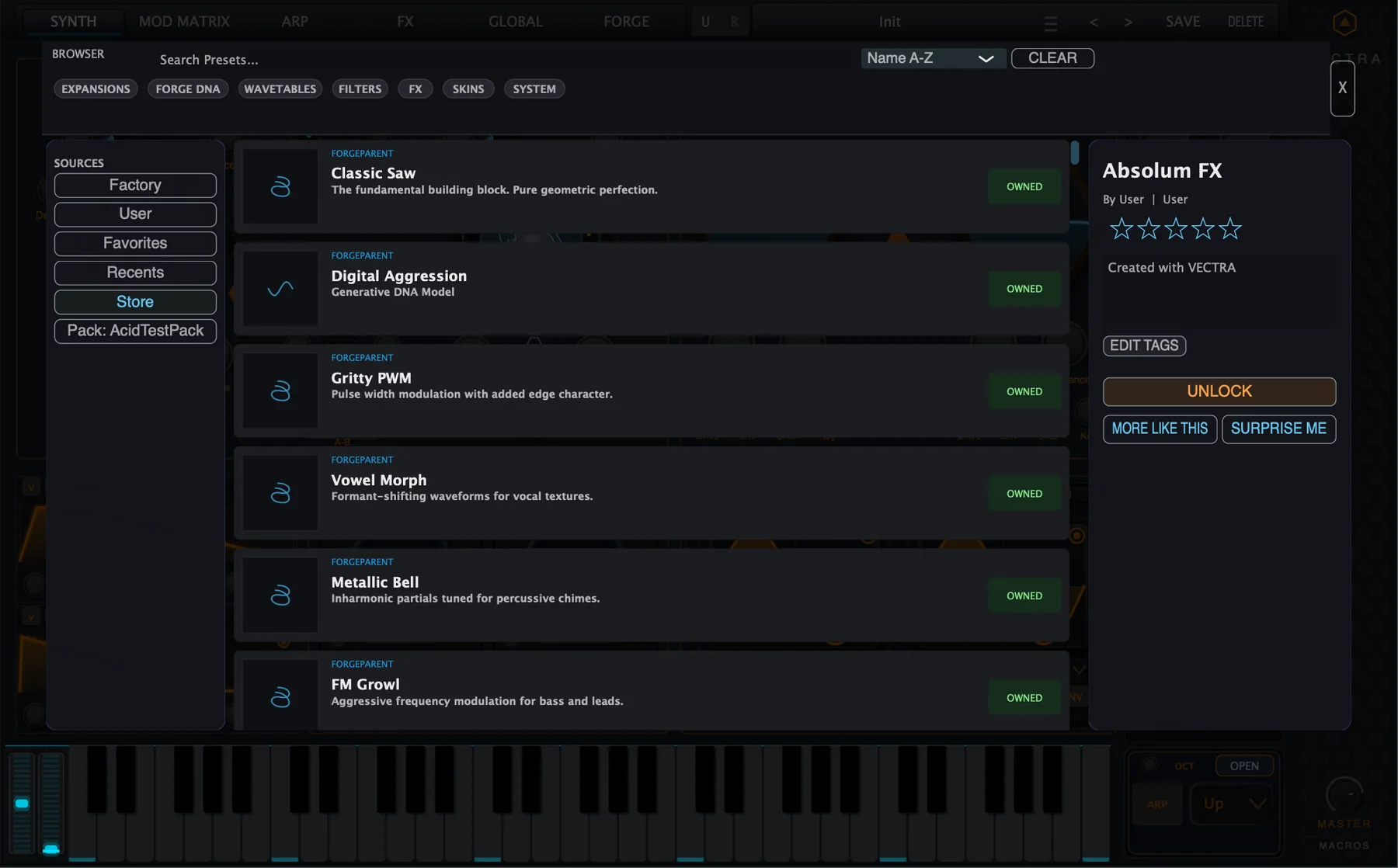
| Store area | Meaning |
|---|---|
| Category chips | Filters Store content by product type. |
| Content cards | Show content name, type and short description. |
| Owned badge | Shows content already available to the current installation/account. |
| Unlock / purchase action | Starts the unlock or purchase flow when content is not yet owned. |
Purchases and account ownership are handled through Audionerdz. After a purchase, use License Center sync so Vectra can refresh the local ownership state.
Back to top12. Locked Presets, Sound DNA and Missing Content
A locked preset is not broken. It needs content, modules, packs or edition access that is not currently active on this Vectra installation. Sound DNA explains the requirement in musical categories so you can decide whether to unlock the missing parts or choose another sound.
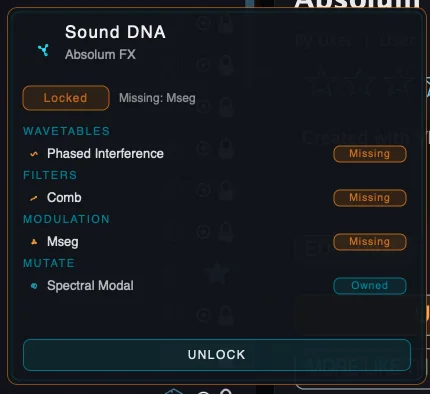
| Sound DNA status | Meaning |
|---|---|
| Owned | This part of the preset is available on the current installation. |
| Missing | This part of the preset requires content or a module that is not currently available. |
| Locked | The preset or content needs an unlock, pack, module purchase or edition access. |
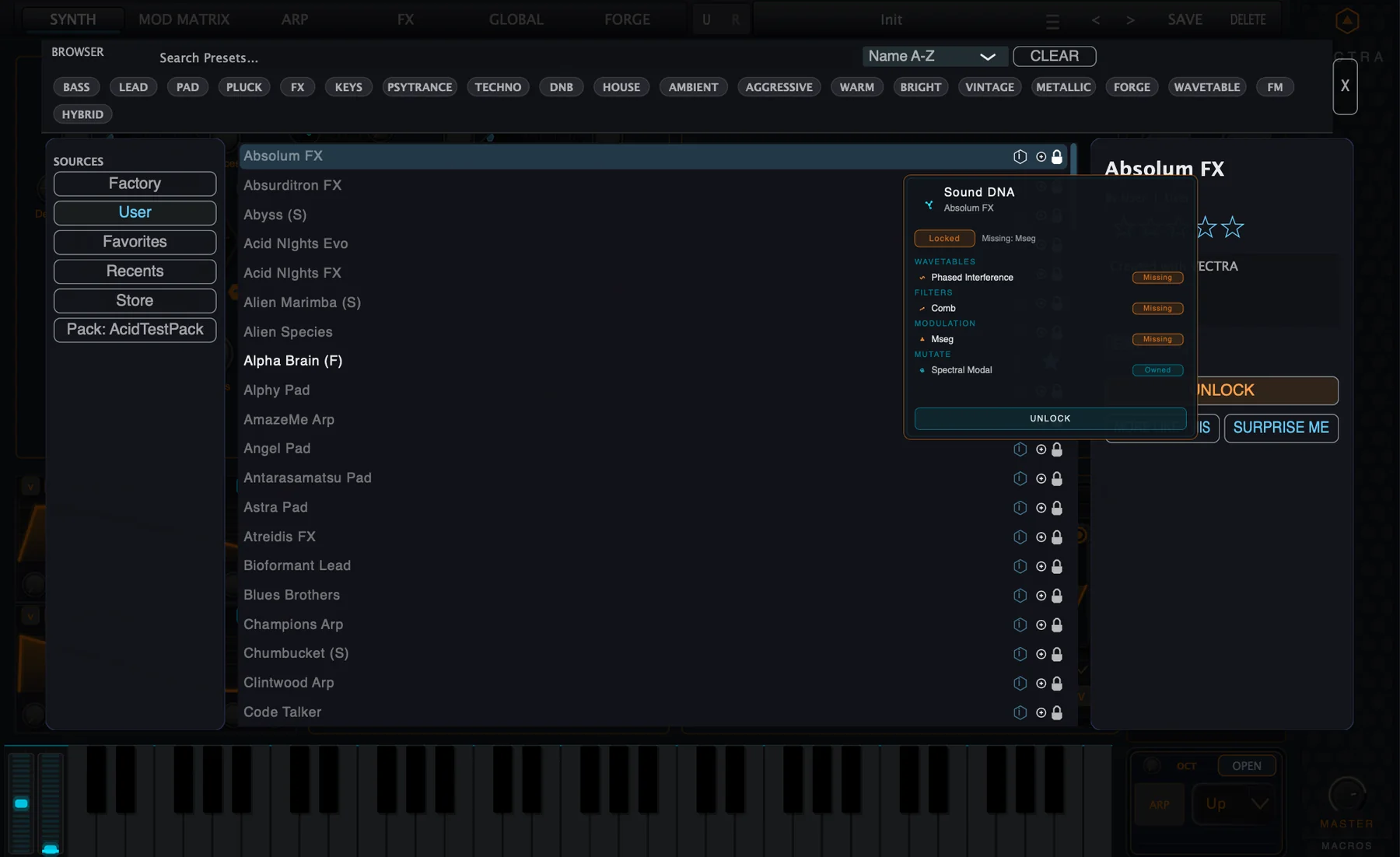
13. License Center and Sync Audionerdz Purchases
The License Center connects Vectra to activation and ownership information. The Sync section is the normal place to refresh purchased products, upgrades, modules and content packs from audionerdz.net.
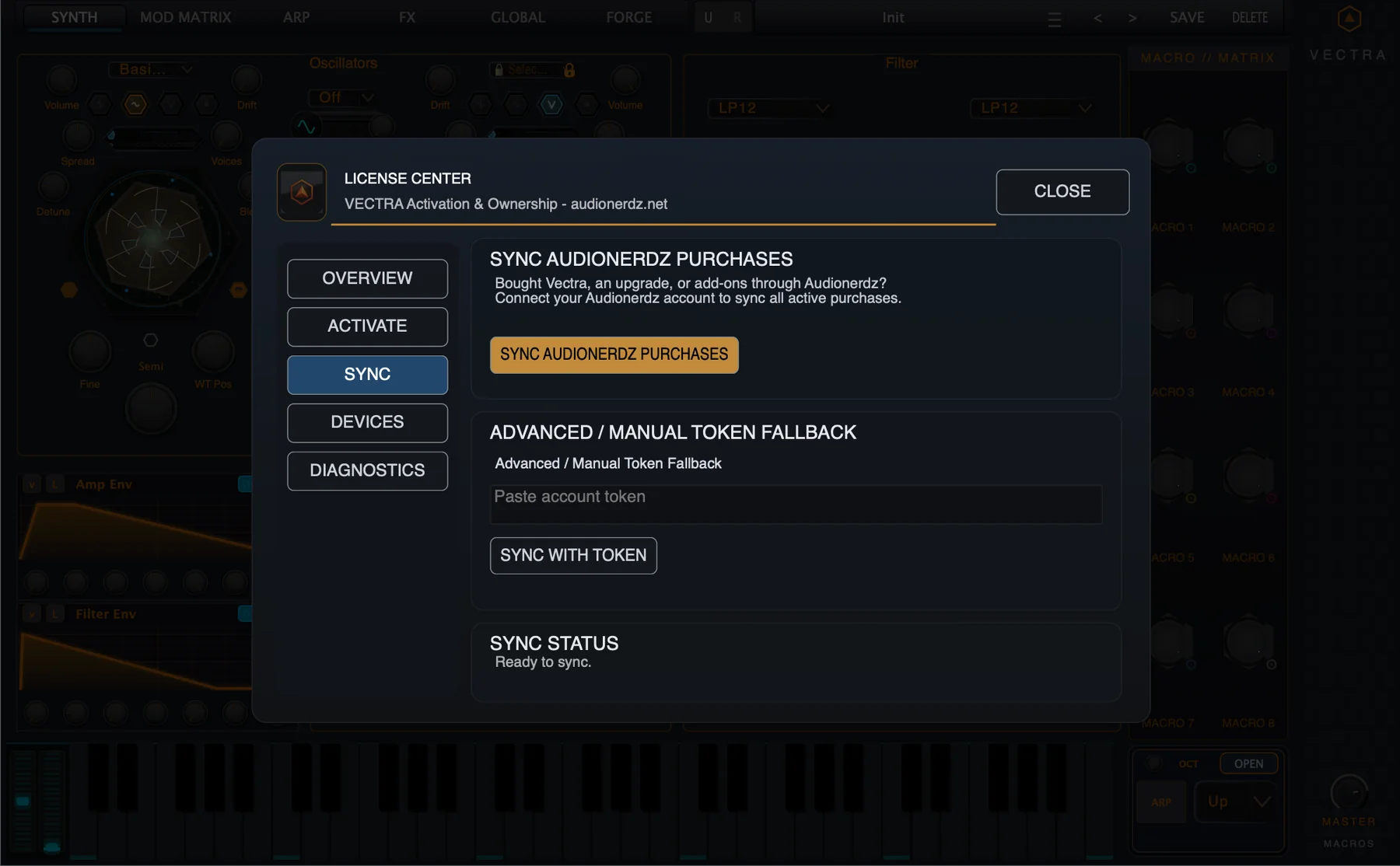
| License Center section | Use |
|---|---|
| Overview | Shows current activation and ownership status. |
| Activate | Activates Vectra when activation is required. |
| Sync | Refreshes Audionerdz purchases and ownership. |
| Devices | Shows or manages authorized devices where supported. |
| Diagnostics | Provides support-oriented status information. |
14. Actions Menu and Help Links
The top-bar Actions menu collects preset actions, library shortcuts, account access, tour replay and help links in one place.
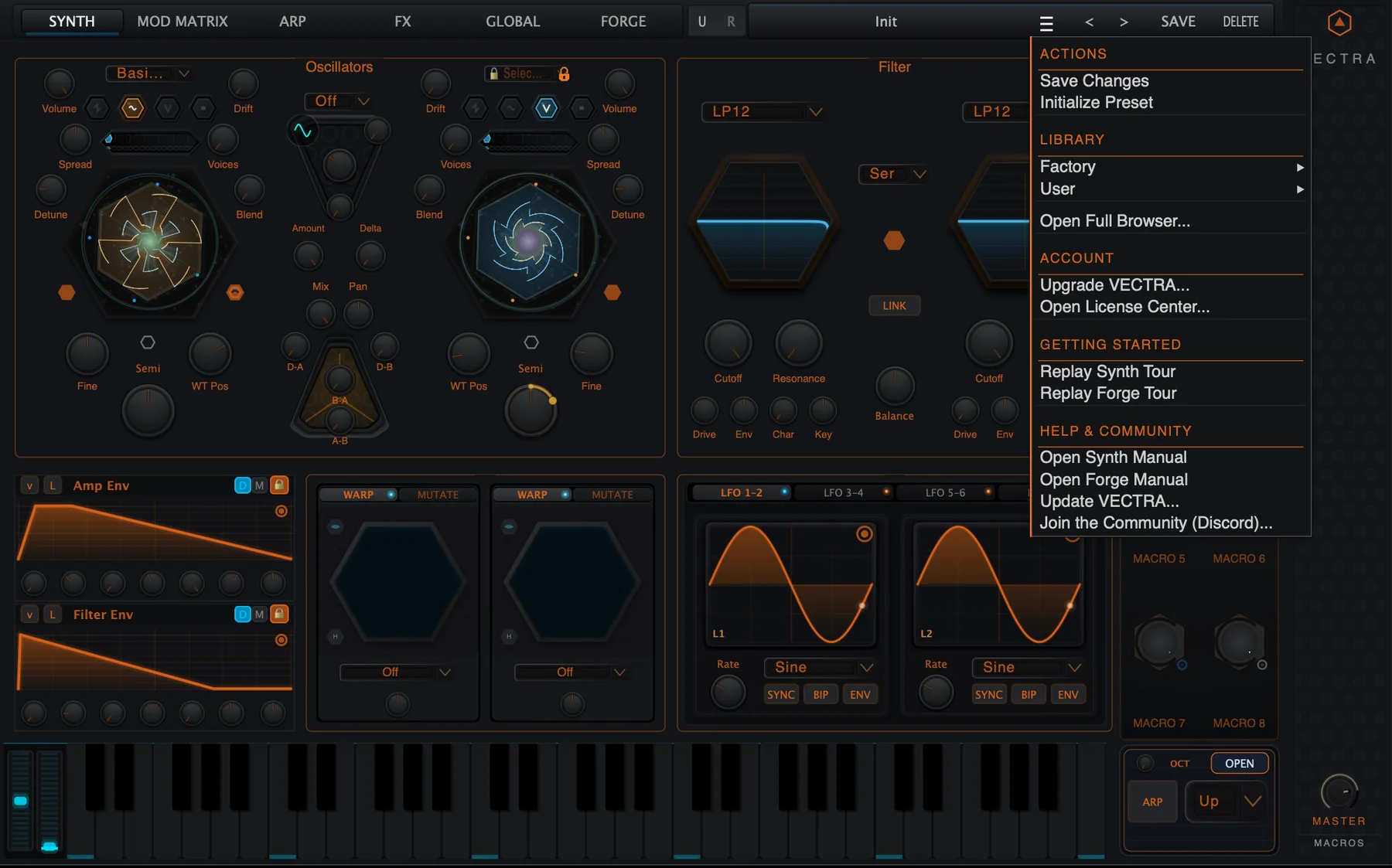
| Menu group | Commands |
|---|---|
| Actions | Save Changes, Initialize Preset. |
| Library | Factory, User, Open Full Browser. |
| Account | Upgrade VECTRA, Open License Center. |
| Getting Started | Replay Synth Tour, Replay Forge Tour. |
| Help & Community | Open Synth Manual, Open Forge Manual, Update VECTRA, Join the Community. |
15. Practical Workflows
Find a psytrance bass
- Open the Preset Browser.
- Select Factory or User.
- Activate Bass and Psytrance tag chips.
- Sort by Rating or Most used.
- Load the best match or use More Like This.
Build a personal favorite list
- Browse Factory and User presets.
- Select useful sounds.
- Click the favorite star.
- Open Favorites from the Sources panel when performing or producing.
Use Store view after hearing a locked preset
- Select the locked preset.
- Open Sound DNA to see what is missing.
- Use Unlock if you want the required content.
- Sync Audionerdz Purchases after purchase.
- Return to the preset and load it again.
Recover from missing content
- Select the preset.
- Open Sound DNA.
- Check which category is missing.
- Sync purchases if the content is owned.
- Use another preset or unlock the missing content if needed.
Save a working patch
- Create the sound.
- Press Save.
- Enter a clear name.
- Add tags or notes later from the Details panel.
- Find the patch under User.
16. Troubleshooting
| Issue | Likely cause | Fix |
|---|---|---|
| Preset is locked | The preset needs additional content, a module, pack or edition access. | Open Sound DNA, then unlock or sync the required content. |
| Purchased content still looks locked | Vectra has not refreshed ownership yet. | Open License Center and run Sync Audionerdz Purchases. |
| Search returns no results | Search text and tag filters may be too narrow. | Press Clear and search again with fewer filters. |
| Favorite does not appear | The current source/filter view may hide it. | Open Favorites and clear active tag filters. |
| User preset not visible | The browser may be viewing Factory, Store or a pack. | Select User in the Sources panel. |
| Delete prompt appears | Delete was pressed for the current preset. | Cancel if this was accidental. Confirm only when the preset name is correct. |
| Store item says Owned but preset still shows missing | Ownership may not be refreshed or the preset may need another module. | Run sync, then inspect Sound DNA again. |
| Manual token fallback needed | Account sync may not be available in the current environment. | Use the Manual Token Fallback only when instructed by Vectra/Audionerdz support. |
17. Technical Appendix
Preset metadata
Preset metadata powers the browser experience. It can include name, author, source, pack, tags, rating, favorite state, usage information, description and content requirements. Users interact with this metadata through search, sorting, tags, details, favorites, Store view and Sound DNA.
Browser scopes
Factory, User, Favorites, Recents, Store and Pack views are browsing scopes. Switching scopes changes which pool of sounds or content is searched and displayed.
Ownership and requirements
Some presets depend on specific modules, content packs, edition access or store products. Vectra displays those requirements through lock icons, the Unlock action and Sound DNA. Sync refreshes the local ownership state after purchases made through Audionerdz.
Back to top18. Preset Compatibility Notes
When a preset uses modules or content that are not active on the current installation, Vectra keeps the preset understandable instead of silently hiding the problem. Sound DNA shows which categories are available and which still require attention.
Presets can remain useful even if optional content is missing, but the exact sound may depend on the unavailable component. For best results, sync purchases, install the required pack or choose an available preset with similar tags.
Back to top